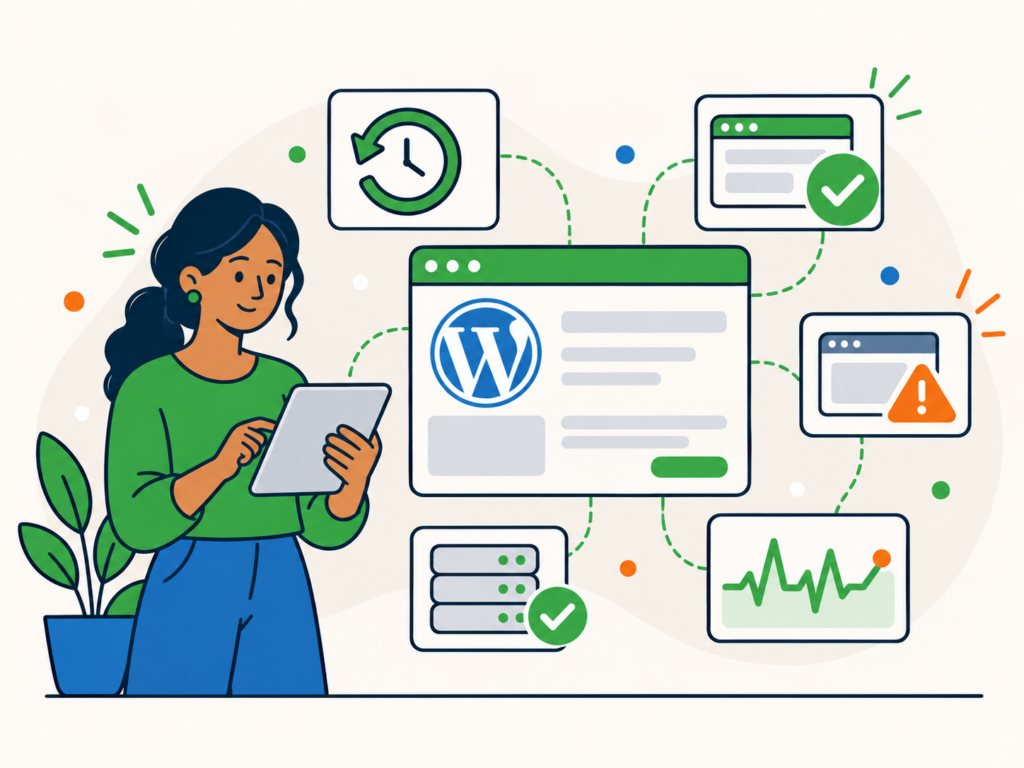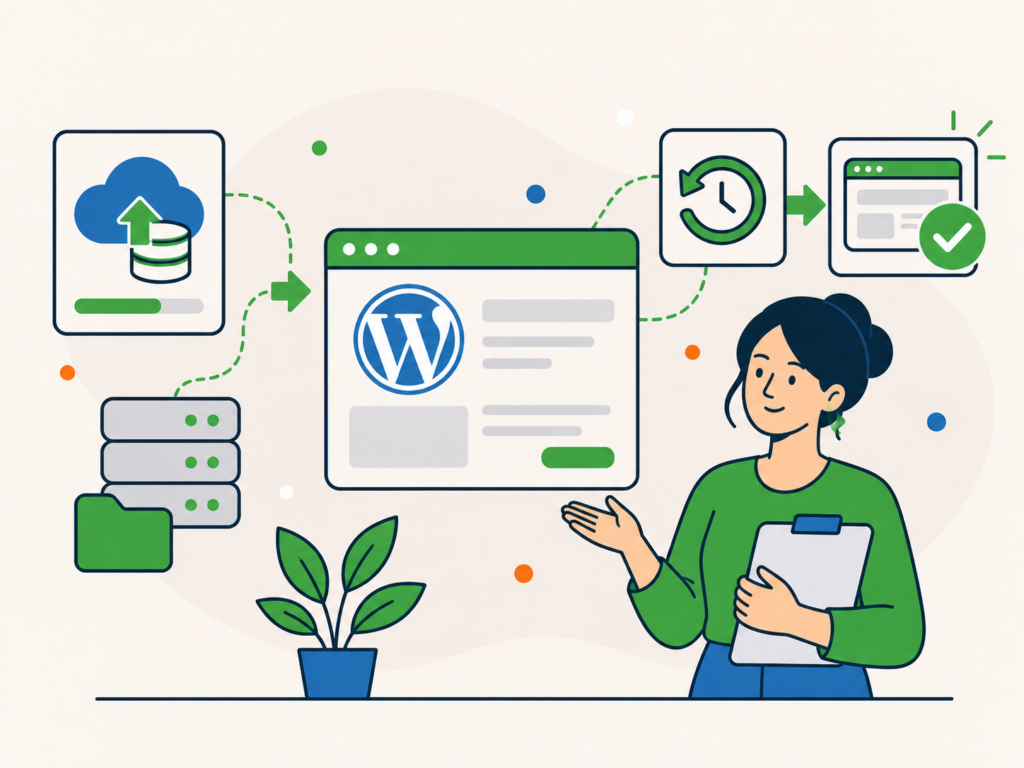
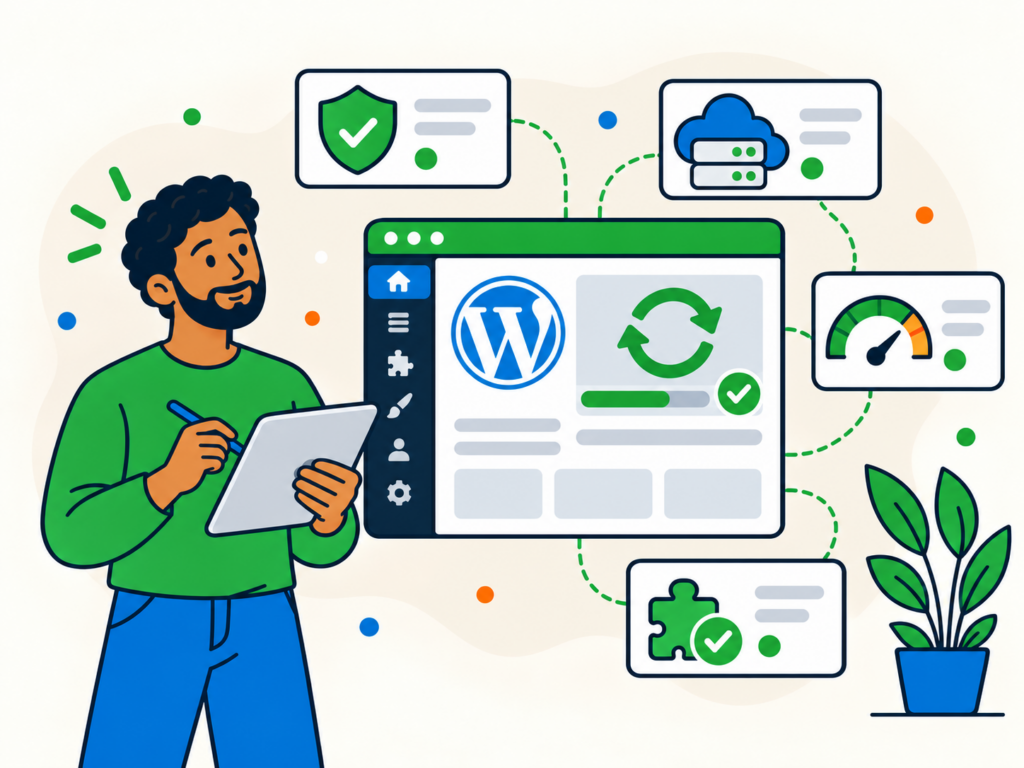
Keeping WordPress up to date is one of the most important parts of maintaining a secure and reliable website. Updates can fix security vulnerabilities, resolve bugs, improve compatibility and introduce useful features.
However, updating WordPress without preparation can occasionally cause problems, particularly on websites that rely on multiple plugins, custom functionality or complex integrations.
The good news is that most WordPress core updates are straightforward. The key is knowing what to check beforehand, how to perform the update and how to confirm everything still works afterwards.
This guide explains why you should update WordPress, how automatic updates work and the steps you can take to reduce the risk of disruption.
Why Should You Keep WordPress Updated?
WordPress is actively developed, with new versions released to address security issues, improve existing functionality and introduce new features.
There are several reasons to keep your installation up to date.
1. Security fixes
Security is one of the strongest reasons to update WordPress.
When vulnerabilities are discovered in WordPress core, developers can release security updates to address them. Once a vulnerability becomes publicly known, websites running affected versions may be exposed to attacks.
Attackers do not necessarily need to know your exact WordPress version to exploit a vulnerability. Automated tools can identify potentially vulnerable websites and attempt to exploit weaknesses in outdated software.
Keeping WordPress updated reduces your exposure to known vulnerabilities.
However, WordPress core is only one part of your website. Plugins, themes, hosting software and user accounts also need appropriate security measures.
2. Bug fixes and reliability
Even well-tested software can contain bugs.
WordPress updates regularly address issues affecting the editor, media handling, administration screens, APIs and other core functionality.
Installing maintenance releases helps ensure your website benefits from these fixes rather than continuing to run software with known problems.
3. Compatibility improvements
WordPress works alongside themes, plugins, PHP and other server software.
As these technologies evolve, WordPress releases may introduce compatibility improvements or change how certain features operate.
Keeping WordPress updated makes it easier to maintain compatibility with actively supported plugins and themes.
However, newer WordPress versions can also expose problems in outdated or poorly maintained extensions. This is why compatibility checks are important before major updates.
4. New features and performance improvements
Major WordPress releases can introduce new editing tools, accessibility improvements and administrative features.
Some releases also improve performance by optimising how WordPress processes requests, handles data or delivers content.
These improvements can benefit your website, although updating WordPress does not automatically guarantee faster loading times.
You can review the changes introduced in each release through the official WordPress release announcements.
What Should You Check Before Updating WordPress?
Although WordPress makes updating relatively easy, a little preparation can prevent a minor problem from becoming a major disruption.
1. Create a complete backup
Before updating WordPress, make sure you have a recent, usable backup.
A complete WordPress backup should include:
- Database: Posts, pages, settings, users and data stored by plugins.
- Website files: Themes, plugins, uploaded media and custom code.
- Important configuration: Any additional files or settings required to restore the website correctly.
Many hosting providers offer automated backups, but you should confirm what they include, when the latest backup was taken and how restoration works.
Where possible, keep backups in a separate location rather than relying entirely on copies stored on the same server.
It is also worth checking that your backup process has been tested. A backup is only useful if it contains everything needed for recovery.
For more detailed guidance, see our article on how to back up and restore your WordPress website.
Important: Restoring an older database backup can overwrite orders, registrations, enquiries and other data created since the backup. This is particularly important for WooCommerce and membership websites. Investigate the problem and consider how to preserve newer data before restoring a live database.
2. Check plugin, theme and PHP compatibility
Before installing a major WordPress update, check whether your important plugins and active theme support the newer version.
Pay particular attention to:
- Plugins that have not been updated or maintained for a long time.
- WooCommerce, membership and booking functionality.
- Page builders and custom themes.
- Custom integrations or development work.
- Server requirements, including the supported PHP version.
You can review your server information under Tools > Site Health > Info in the WordPress dashboard.
WordPress also provides release notes and technical requirements that can help identify compatibility concerns.
If your website is several major versions behind, it may require additional checks or a staged upgrade rather than simply applying every available change at once.
3. Test significant updates on a staging website
A staging website is a separate copy of your website where you can test changes without immediately affecting visitors.
It is particularly useful for websites with complex functionality or where downtime could affect customers.
On staging, you can update WordPress and check whether your plugins, theme and important features continue working.
For example, an online shop should be tested for product browsing, basket functionality and checkout behaviour before making the same changes on the live website.
If you do not already have a staging environment, see our guide on how to create a WordPress staging website.
Be careful when working with staging copies of live websites. Payment gateways, outgoing emails and external integrations should be configured appropriately to avoid unintended real-world actions.
Do not overwrite your live database with an older staging database after testing. Doing so could remove customer orders, registrations or other recent changes.
4. Choose an appropriate time
Updates are best performed when you can monitor the website and investigate any problems.
For a small website, this may simply mean choosing a quiet period.
For a busy online shop or membership website, consider visitor activity, scheduled campaigns and any other work taking place.
Avoid making unrelated changes at the same time. Keeping updates separate makes it easier to identify the cause if something goes wrong.
How to Update WordPress from Your Dashboard
For most websites, the simplest way to update WordPress is through the built-in dashboard.
Step 1: Log in to WordPress
Sign in to your WordPress administration area using an account with permission to manage core updates.
For a typical WordPress installation, you can access the dashboard at:
https://yourwebsite.com/wp-admin/
If your website is managed by a hosting provider or maintenance service, check whether updates are already handled for you.
Step 2: Open the Updates screen
Navigate to Dashboard > Updates.
WordPress will display your current version and indicate whether a newer version is available.
The same screen also shows available plugin, theme and translation updates.
If WordPress is already running the latest available version, there may be nothing further to install.
Step 3: Confirm your backup is ready
Before proceeding, check that your backup has completed successfully and that you have a suitable recovery option.
If you have not yet checked compatibility or completed any necessary staging tests, do so before installing the update.
Step 4: Install the WordPress update
When a new version is available, click the relevant Update to version or Update Now button.
WordPress will download and install the update.
During the process, WordPress may briefly place your website into maintenance mode.
Allow the update process to complete, and avoid starting another update or making unrelated changes while it is running.
Once finished, WordPress should display confirmation or direct you to the relevant administration screen.
If a database update is required, WordPress may prompt you to complete that step as well.
Step 5: Confirm the update succeeded
Return to Dashboard > Updates and verify that WordPress reports the expected version.
Then check the website itself. A successful update message confirms the installation process completed, but it does not guarantee that every plugin or feature works correctly.
The official WordPress updating documentation provides additional guidance on dashboard updates and alternative update methods.
How Do Automatic WordPress Updates Work?
WordPress includes automatic update functionality, allowing certain updates to install without requiring you to start the process manually.
However, not every WordPress website uses the same automatic update settings.
Minor and major WordPress updates
WordPress core updates fall into different categories.
Minor updates generally address maintenance issues, security vulnerabilities and bugs within an existing major release.
For example, an update from WordPress 6.8 to 6.8.1 is a minor release.
Major updates introduce a new major release, potentially including substantial features, improvements or changes to existing functionality.
For example, moving from WordPress 6.8 to 6.9 is a major release.
Since WordPress 3.7, minor core updates have generally been enabled automatically on standard installations.
Beginning with WordPress 5.6, new installations have generally enabled automatic updates for both major and minor core releases by default. Websites installed before this change may retain their previous minor-only configuration.
The actual behaviour can also depend on your hosting provider, update-management plugins and website configuration.
How to check your automatic update settings
Open Dashboard > Updates.
Depending on your current configuration, WordPress may provide an option to enable automatic updates for major releases or switch to maintenance and security releases only.
If your hosting provider manages updates, these controls may be unavailable or overridden by the hosting environment.
WordPress also allows developers to configure core automatic updates through wp-config.php and filters, but most website owners do not need to edit these settings manually.
For more technical information, see the official WordPress automatic update documentation.
What about plugin and theme updates?
WordPress core updates are separate from plugin and theme updates.
Since WordPress 5.5, administrators have been able to enable automatic updates for individual plugins and themes through the dashboard.
For plugins, navigate to Plugins > Installed Plugins and look for the automatic-update controls.
For themes, navigate to Appearance > Themes, select a theme and check its available automatic-update options.
These controls may differ or be unavailable depending on your hosting setup, plugins or permissions.
You can find additional instructions in the official WordPress plugin and theme auto-update guide.
Should You Enable Automatic WordPress Updates?
Automatic updates can reduce the time a website spends running outdated software, particularly when security fixes become available.
However, the right approach depends on your website.
For a straightforward blog or brochure website using well-maintained plugins and themes, automatic major and minor core updates may be a practical choice, provided you have reliable backups and suitable monitoring.
For a WooCommerce shop, membership platform or heavily customised website, a more controlled approach may be preferable.
This could involve automatically applying minor security and maintenance releases while testing major updates before deploying them.
Neither approach removes the need for regular checks.
Even a successful automatic update can introduce a compatibility problem that WordPress cannot detect on its own.
If you enable automatic updates, make sure you have:
- Reliable backups and a tested recovery process.
- Website monitoring that can alert you to downtime.
- A way to review update results and failures.
- A process for checking important website functionality.
- Someone available to investigate problems when necessary.
Avoid disabling WordPress updates entirely simply because something might go wrong. Delaying security fixes can create risks of its own.
The goal is to keep your software supported and secure while managing changes appropriately.
What Should You Check After Updating WordPress?
Once the update finishes, spend a few minutes checking the areas of your website that matter most.
1. Check the public website
Open your homepage and several important pages.
Check that content displays correctly, images load and navigation works.
If your website uses a page builder or custom theme, pay particular attention to layouts and interactive elements.
2. Check the WordPress dashboard
Confirm that you can log in, navigate the administration screens and edit content.
Check Dashboard > Updates to verify that the expected WordPress version is installed.
You can also visit Tools > Site Health to review any new warnings.
3. Test important functionality
The checks you need depend on your website.
For example:
- Contact forms: Confirm submissions work and notifications arrive.
- WooCommerce: Test product pages, basket and checkout using an appropriate test method.
- Membership websites: Check login, registration and access restrictions.
- Booking systems: Confirm availability, booking submissions and related notifications.
- Custom integrations: Verify that important external connections still work.
Use test accounts and non-live payment methods wherever appropriate.
4. Review errors and performance
Check for unexpected error messages, broken functionality or noticeable performance changes.
If you have access to server logs, monitoring tools or application error reports, these may help identify problems that are not immediately visible.
Where caching is involved, clear only the relevant caches if necessary and retest. Avoid treating cache clearing as a solution to an underlying compatibility problem.
A brief functional check after each update can help you identify issues before customers report them.
What If a WordPress Update Fails?
Most WordPress updates complete without problems, but failures can happen.
The appropriate fix depends on what went wrong.
The update will not install
If WordPress displays a download, installation or filesystem error, record the exact message before making changes.
Possible causes include insufficient disk space, filesystem ownership or permission problems, unavailable update servers and hosting restrictions.
Check the available error details and contact your hosting provider if the issue relates to the server.
Avoid applying overly permissive file permissions or repeatedly retrying an update without identifying the cause.
The website is stuck in maintenance mode
WordPress temporarily places the website into maintenance mode during certain updates.
If an update is interrupted, the maintenance message may remain visible.
First, confirm that the update process has actually stopped and is not still running.
WordPress uses a temporary .maintenance file in the installation directory. If the update has definitely failed and is no longer running, removing a leftover file may clear the maintenance message.
However, this does not repair an incomplete update.
Follow the official WordPress update troubleshooting instructions or ask your hosting provider to investigate before taking further action.
The website displays a critical error
A critical error after an update may be caused by incompatible plugins, themes, custom code or another server-side problem.
It does not necessarily mean that the WordPress core update itself is defective.
WordPress includes a Recovery Mode feature that can sometimes help administrators regain access when a plugin or theme causes a fatal PHP error.
Check the website administrator email address for a recovery message containing details of the problem.
If available, the recovery link may allow you to access the dashboard and investigate the affected component.
You can learn more in the official WordPress Recovery Mode documentation.
If you suspect a plugin conflict, our guide on how to fix WordPress plugin problems covers common causes and troubleshooting methods.
Should you restore a backup?
Restoring a backup may be appropriate if an update causes serious problems that cannot be resolved promptly.
However, restoration should not automatically be the first troubleshooting step.
Identify the likely cause, determine what needs restoring and consider whether newer website data would be lost.
On active WooCommerce and membership websites, restoring an older database could remove transactions or customer activity that occurred after the backup.
Where possible, use a targeted recovery approach, or seek professional assistance before restoring the complete website.
Keep WordPress Updated Without Disrupting Your Website
Updating WordPress is an essential part of maintaining a secure, reliable website.
For most website owners, the process is straightforward: create a backup, check compatibility, install the update and test the important parts of the website afterwards.
For more complex websites, staging, monitoring and a clear recovery plan provide additional protection.
The important thing is to make updates a regular part of website maintenance rather than ignoring them until something breaks.
If you would prefer someone else to handle the ongoing work, Newt Labs WordPress Maintenance provides regular WordPress updates, backups, monitoring and support to help keep your website running smoothly.