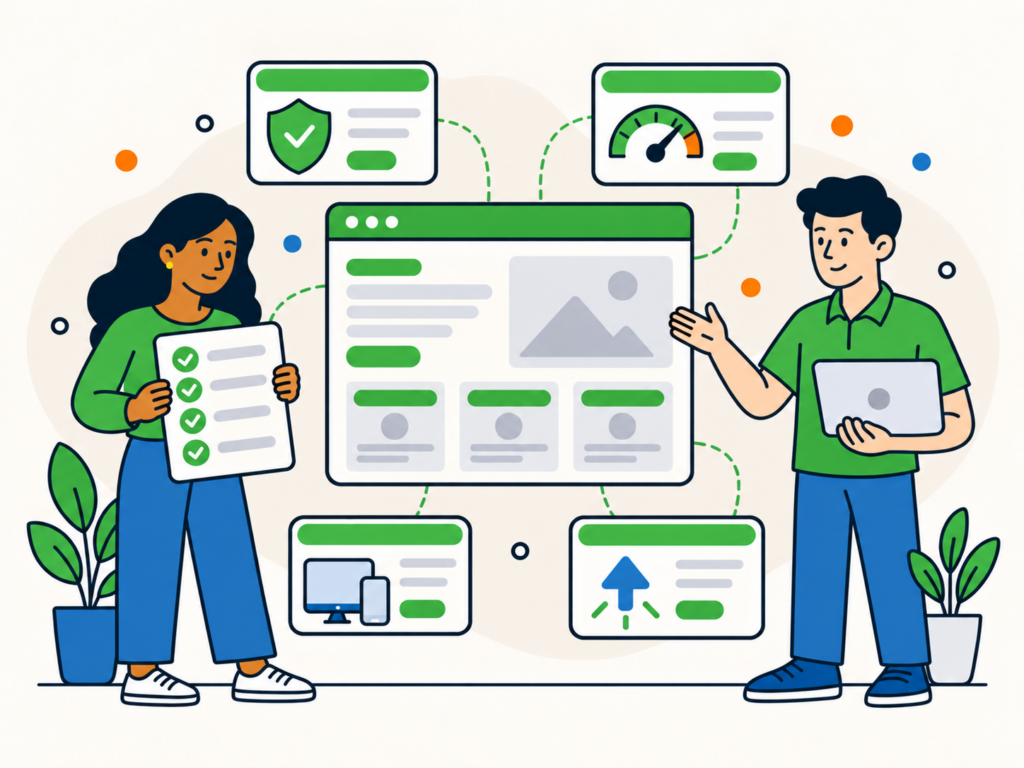
Launching a WordPress website involves more than pressing Publish and hoping everything works.
Before a new website goes live, you need to check its content, settings, links, forms, search visibility, performance, security and tracking. A small mistake at launch can leave important pages inaccessible, forms failing, staging URLs exposed or search engines unable to index the site properly.
This WordPress launch checklist covers the practical checks worth completing before launch, on launch day and during the first few days afterwards.
Remove Demo Content and Development Leftovers
Start by checking that nothing from development has accidentally made it into the finished website.
Look for:
- sample WordPress posts and pages
- lorem ipsum or placeholder text
- temporary images
- test products or orders
- dummy user accounts
- unfinished banners or notices
- development notes
- links pointing to a staging website
- test forms
- placeholder contact details
Check the footer and less obvious pages as well as the homepage.
Search results, archive pages and mobile layouts can sometimes expose content that is easy to miss during normal browsing.
Check Your Important Content Is Ready
You do not need every possible future page finished before launch, but the important parts of the website should be complete.
Depending on the type of website, check pages such as:
- homepage
- service pages
- product pages
- contact page
- about page
- important landing pages
- privacy and legal pages
- key blog or support content
Read the pages as a visitor rather than as the person who built them.
Check for spelling mistakes, outdated claims, inconsistent business information and calls to action that do not make sense.
Make sure visitors can understand what the website offers and what you want them to do next.
Confirm Your WordPress Site Title and Basic Settings
Before launch, review the main WordPress settings under Settings > General.
Check:
- Site Title
- tagline, if used
- administration email address
- timezone
- date and time settings
- website language
The WordPress Site Title identifies the website as a whole. It is different from the titles of individual pages and posts.
If you are unsure about the difference, see our guide to website titles, page titles and SEO titles.
You should also check Settings > Reading to confirm that the correct homepage and posts page are selected where applicable.
Decide Your Permalink Structure Before Launch
WordPress permalinks are the permanent URLs used for posts, pages and other content.
You can review the site’s default permalink structure under:
Settings > Permalinks
Choose a sensible structure before the website starts attracting links, visitors and search engine indexing.
For many websites, a clear URL based on the post or page name works well.
Avoid changing an established live URL simply because another format looks slightly better.
If an existing URL genuinely needs to change, plan the appropriate redirect so visitors and search engines are not sent to a 404 page.
WordPress provides several permalink structures, so choose the one that makes sense for the website rather than changing it repeatedly after launch. See the WordPress permalink settings documentation for the available options.
Check Search Engine Visibility
One of the most important launch checks is under:
Settings > Reading > Search engine visibility
During development, a website may have Discourage search engines from indexing this site enabled.
That can be useful while a site is being built, but it should normally be disabled when a public website is ready to be indexed.
Do not assume this setting makes a staging website private.
It asks search engines not to index the website, but it does not stop normal visitors accessing it.
If a development or staging site must genuinely be private, use proper access restrictions instead.
After launch, check the live site’s source or SEO settings to make sure important pages are not still being served with noindex instructions by WordPress, an SEO plugin or another tool.
WordPress documents the behaviour of this setting in its Reading Settings documentation.
Check Indexability, Canonicals and Production URLs
A website can look fine in a browser while still sending the wrong signals to search engines.
Check important pages for:
- HTTP 200 responses where expected
- unexpected
noindexdirectives - the correct production domain
- sensible canonical URLs
- staging-domain references
- HTTP links where HTTPS should be used
- duplicate versions of important URLs
A canonical URL tells search engines which version of a duplicate or very similar page you prefer.
It is a signal rather than an absolute command, so the rest of the website should support the same choice.
For example, avoid putting one URL in a canonical element while linking internally to a different version of the same page.
Keep your production URLs, internal links, sitemap and canonical signals consistent.
Review Page Titles and Meta Descriptions
Important pages should have clear titles that accurately describe their content.
Before launch, look for:
- duplicated titles
- placeholder titles
- development or staging branding
- titles that no longer match the page
- unnecessarily repetitive wording
- old dates
- missing or poor meta descriptions
A meta description does not guarantee a particular search ranking or even that Google will display the text exactly as written.
Its purpose is to provide a useful description of the page that search engines can consider when generating a search result.
Keep titles and descriptions relevant to the actual content rather than filling them with repeated keywords.
Review Categories, Tags and Archives
If the website contains blog content, review its WordPress categories and tags.
Remove obvious development leftovers such as:
- Uncategorized posts
- duplicate categories
- spelling variations
- tags used on only one irrelevant post
- huge numbers of near-identical tags
Categories and tags can be useful ways to organise a website.
There is no need to automatically hide every category or tag archive from search engines.
Instead, decide whether each type of archive has a useful purpose for visitors and whether it contains enough meaningful content to justify being available in search.
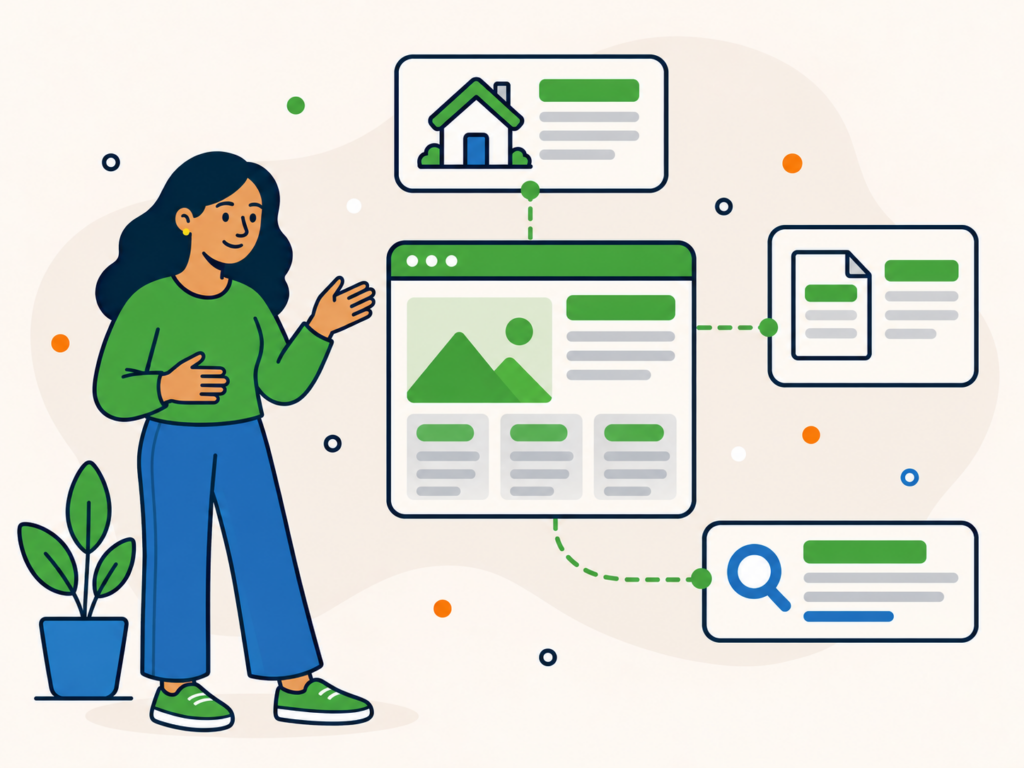
Test Navigation and Internal Links
Go through the website as a visitor and click the important links.
Check:
- main navigation
- mobile navigation
- footer menus
- buttons
- calls to action
- logo links
- breadcrumbs, if used
- links within page content
- downloads
- email and telephone links
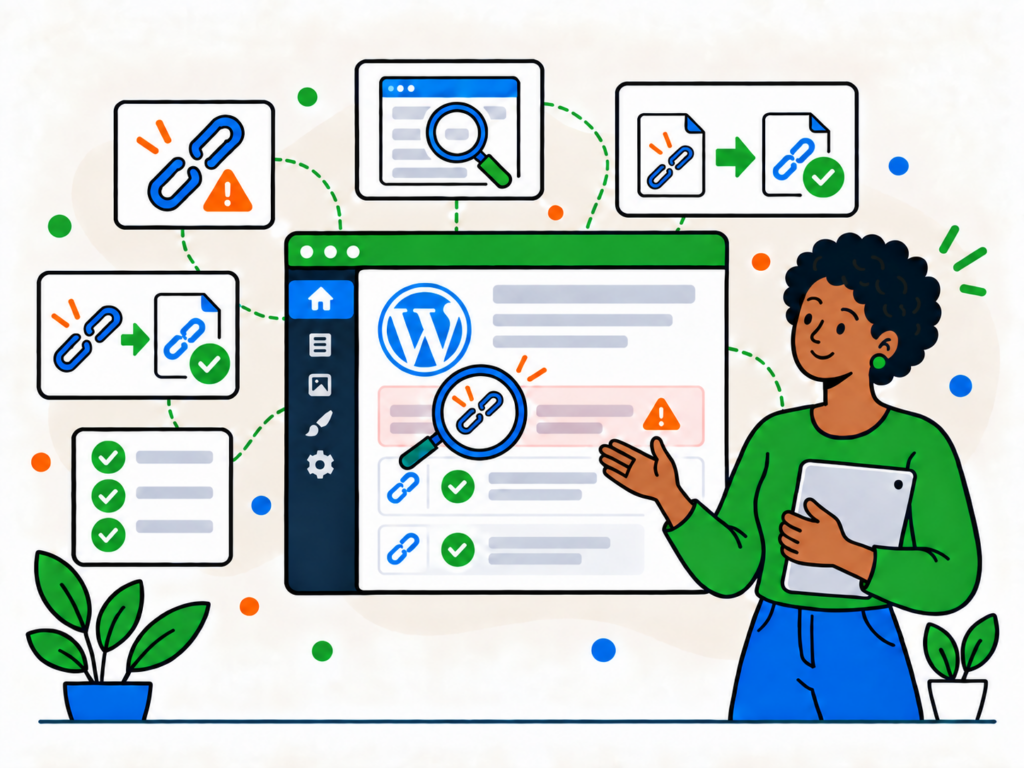
Look for broken links and unexpected redirects.
A link can fail because its destination was renamed, deleted or copied incorrectly during development.
For a more detailed process, see our guide on how to find and fix broken links in WordPress.
Test Forms, Calls to Action and Transactions
Do not assume a form works because it looks correct.
Submit it.
Test every important interaction a real visitor may need to complete.
That can include:
- contact forms
- quote request forms
- newsletter forms
- booking forms
- account registration
- login and password-reset processes
- checkout
- payment processing
- order emails
- enquiry notifications
Check what happens after submission.
Make sure confirmation messages or pages appear correctly and that the intended recipient actually receives the notification.
For transactional websites, complete a genuine end-to-end test wherever practical.
Check Email Delivery
Forms can appear to submit successfully while email notifications never arrive.
Check that:
- the site sends from an appropriate address
- administrator notifications arrive
- customer confirmations arrive
- emails do not contain staging URLs
- the From name is correct
- important messages are not immediately sent to spam
If the website relies heavily on email, consider using a properly configured transactional email service rather than depending solely on basic server mail.
Check the Website on Mobile and Different Screen Sizes
Do not review the finished site only on the computer used to build it.
Check key pages on different screen sizes.
Look for:
- broken navigation
- overlapping text
- buttons that are difficult to tap
- forms extending off the screen
- tables that do not fit
- images overflowing their containers
- horizontal scrolling
- pop-ups covering important content
- unusually large gaps
- missing content
Pay particular attention to the homepage, important service or product pages, contact forms and checkout flows.
Check Performance and Page Experience
A launch is a good time to identify obvious performance problems before they affect real visitors.
Check for:
- very large images
- unnecessary scripts
- excessive third-party services
- poor caching
- slow server responses
- unoptimised fonts
- layout movement
- slow loading of important page content
If the website uses a caching system or CDN, confirm that it is actually working rather than simply installed.
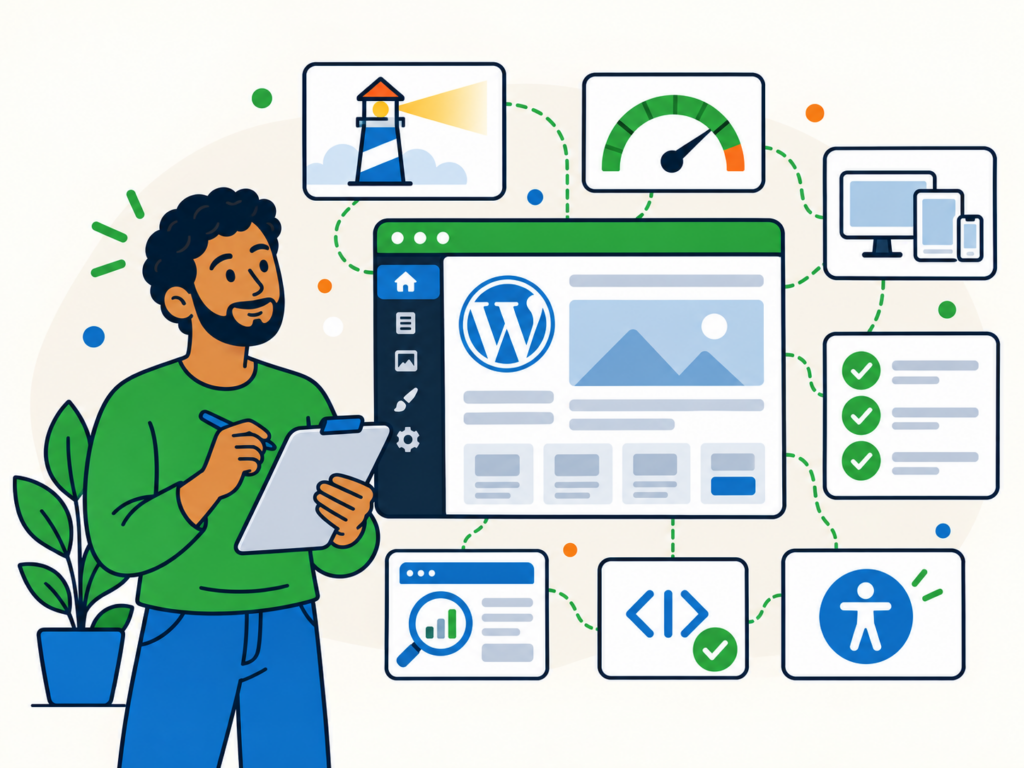
Google recommends looking at page experience as a whole. Core Web Vitals matter, but a website also needs secure HTTPS pages, good mobile usability and content that is not obstructed by intrusive elements.
You can use our Google Lighthouse guide to audit performance, accessibility, SEO and other technical areas before launch.
Do not chase a perfect performance score at the expense of usability or useful website features.
The goal is a website that works well for real visitors.
Check HTTPS and Mixed Content
Every public page should load over HTTPS.
Check that:
- the SSL certificate is valid
- HTTP requests redirect correctly to HTTPS
- internal links use HTTPS where appropriate
- images and scripts are not being loaded insecurely
- browsers do not show security warnings
Mixed-content problems often happen when a website has been moved from development or from an older HTTP setup.
They should be fixed before launch.
Check WordPress, Themes and Plugins
Review the software powering the website before it goes live.
Check:
- WordPress core
- active theme
- plugins
- licences where relevant
- abandoned or unnecessary plugins
- unused themes
- duplicate functionality
Only keep software the website actually needs.
There is no ideal fixed number of plugins. What matters is whether each plugin is necessary, maintained, compatible and configured correctly.
Do not perform major updates immediately before launch without testing them first.
Check Backups
A new website should have a working backup process from the start.
Confirm:
- backups are actually running
- the database is included
- uploaded files are included
- backups are stored somewhere appropriate
- enough backup history is retained
- somebody knows how the website would be restored
A backup you have never verified is less useful than one you know can be restored.
If the launch involves replacing an existing live site, take a final backup before making the switch.
Review WordPress Users and Security
Check the site’s user accounts before launch.
Remove:
- temporary developer accounts no longer needed
- test users
- duplicate administrator accounts
- accounts belonging to people who no longer require access
Make sure administrators use strong passwords and appropriate account security.
Also check that your normal WordPress security measures are active and that the site is not exposing unnecessary development tools or files.
Set Up Analytics
If the website uses analytics, configure it before launch so useful data is collected from the beginning.
After launch, verify that data is actually arriving.
Check:
- page views
- important events
- form conversions
- ecommerce tracking where relevant
- consent behaviour where required
Do not assume analytics works simply because a tracking script exists in the page source.
Test it.
Set Up Google Search Console
Google Search Console is useful for monitoring how Google crawls, indexes and displays the website.
For a new launch, make sure the correct production property is verified.
Search Console can help you:
- review indexing problems
- inspect individual URLs
- test a live URL
- request crawling for important individual pages
- monitor search impressions and clicks
- review Core Web Vitals
- identify security issues reported by Google
Do not expect useful Search performance data immediately after launch. It takes time for Google to crawl pages and for search data to accumulate.
Google provides a practical overview in its Search Console getting started guide.
Check Your XML Sitemap
WordPress itself and many SEO plugins can generate XML sitemaps.
Before launch, open the sitemap and make sure it loads successfully.
Check that it contains the types of URLs you actually want search engines to discover.
Avoid including:
- staging URLs
- HTTP versions of HTTPS pages
- obviously broken URLs
- URLs that contradict your preferred canonical versions
Where appropriate, submit the sitemap through Google Search Console.
A sitemap helps search engines discover URLs, but submitting one does not guarantee that Google will crawl or index every page. See Google’s sitemap guidance for more detail.
Check robots.txt
Open the live site’s robots.txt file after launch.
Make sure it does not contain development rules that accidentally block important content.
A robots.txt file controls crawler access. It is not a reliable way to keep confidential content private.
If something must not be publicly accessible, protect the content properly rather than relying on crawler instructions.
Check Redirects
If the new website replaces an existing site or changes any established URLs, test your redirects.
Important old URLs should lead directly to the most relevant replacement where one exists.
Avoid:
- redirect loops
- unnecessary chains
- redirecting every missing URL to the homepage
- redirects to unrelated content
If an old page genuinely has no relevant replacement, a 404 or 410 response can be more appropriate than an irrelevant redirect.
Launch-Day Checks
Once the production website is live, repeat the checks that are most likely to behave differently on the real domain.
At minimum:
- open the homepage logged out
- open important pages logged out
- confirm HTTPS
- confirm the correct production domain
- check search engine visibility
- check for unexpected
noindex - test navigation
- test forms
- test checkout or account functions where relevant
- check redirects
- open the XML sitemap
- inspect robots.txt
- verify analytics
- check caching and CDN behaviour
- confirm the website works on mobile
Do not rely only on an administrator session.
Caching, permissions and personalisation can make a website behave differently for logged-in users.
Check the Website Again After Launch
A launch checklist does not end the moment the website becomes public.
Some problems only become obvious after real visitors and search engines begin using the site.
During the first days and weeks, monitor:
- uptime
- server or application errors
- Search Console
- indexing
- broken links
- analytics
- form submissions
- transactions
- Core Web Vitals
- visitor behaviour
- customer feedback
If users repeatedly struggle with the same part of the website, treat that as useful launch feedback rather than assuming the original design must be correct.
You can refine the site once you have real evidence about how people use it.
WordPress Website Launch Checklist
Before launch:
- remove demo and placeholder content
- complete important pages
- check Site Title and WordPress settings
- choose the permalink structure
- review search engine visibility
- check indexability and canonicals
- review titles and meta descriptions
- tidy categories and tags
- test navigation and links
- test forms and email delivery
- test transactions where relevant
- review mobile layouts
- check performance
- confirm HTTPS
- review WordPress, themes and plugins
- confirm backups
- review administrator accounts and security
- configure analytics
- verify Search Console
- check the XML sitemap
- review robots.txt
- prepare redirects for changed URLs
After going live:
- test important pages while logged out
- confirm search engines are no longer discouraged
- verify forms and transactions again
- check analytics data
- test redirects
- confirm the sitemap and robots.txt
- monitor errors and uptime
- review Search Console as data becomes available
- fix issues discovered by real visitors
Need Help Getting a WordPress Website Ready to Launch?
A launch can involve dozens of small technical checks, and missing one can create problems after the site is already public.
Newt Labs provides one-off WordPress support for individual website jobs, fixes and launch preparation.
If you want an experienced WordPress specialist to check a site, resolve technical problems or help get it ready to go live, we can handle the work without requiring an ongoing plan.