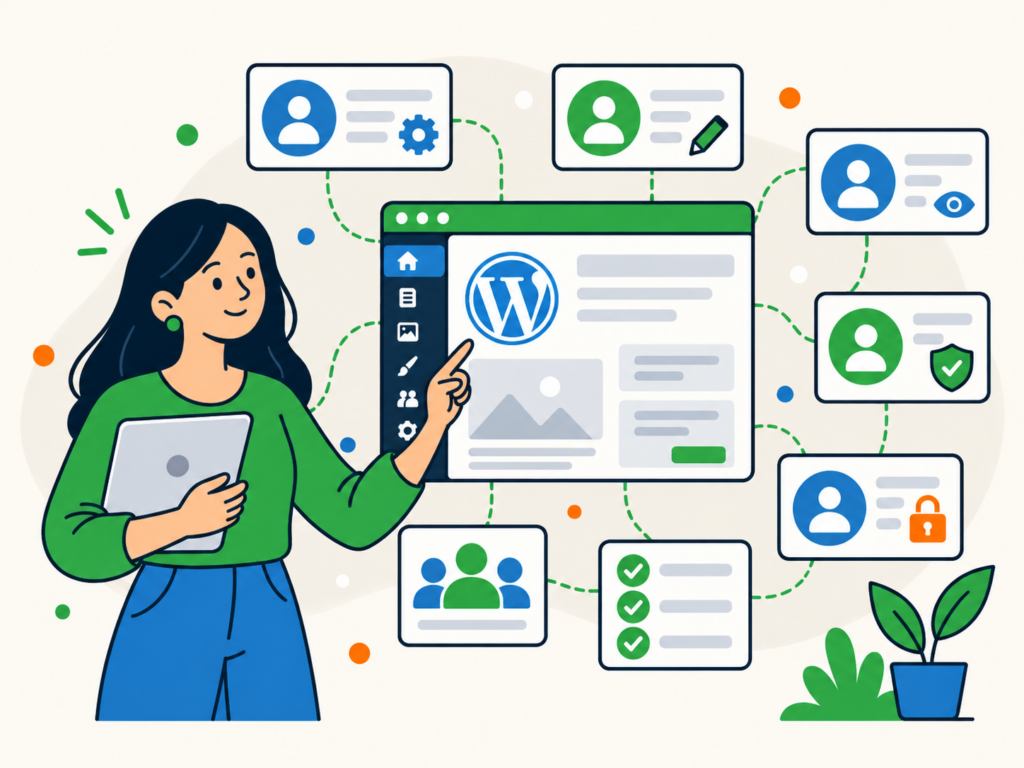
When someone needs to work on your WordPress website, they do not necessarily need access to everything.
A writer might need to create posts, an editor may need to review and publish content, and a developer may temporarily need access to site settings. Giving each person the right level of access helps protect your website and makes their dashboard easier to use.
WordPress user roles make this possible. They control what people can do after logging in, from editing their own posts to managing plugins and other users.
This guide explains the standard roles, how to add and manage accounts, and how to remove access without accidentally losing important content.
What are WordPress roles and capabilities?
A user role is a collection of permissions, called capabilities, that WordPress assigns to an account.
A capability controls a particular action. For example, WordPress uses capabilities to determine whether someone can publish posts, edit other people’s content or manage site settings.
Rather than configuring every capability separately for each new user, you can assign a role that already contains an appropriate set of permissions.
For example, a Contributor can draft posts but cannot publish them. An Editor can manage and publish content written by other users.
Roles are not simply job titles or a rigid hierarchy. The important question is what someone needs to do on your website.
WordPress provides standard roles, but plugins, custom development and Multisite configurations can change the capabilities available. Always check the actual permissions on your site rather than assuming every WordPress installation works identically.
The official WordPress roles and capabilities documentation provides a detailed reference.
What can each standard WordPress user role do?
A typical single-site WordPress installation includes five standard roles.
Administrator
An Administrator has extensive control over a single WordPress website.
On a standard single-site installation, Administrators can manage users, change settings, install or activate plugins and themes, and manage site content.
This level of access is appropriate for the website owner or somebody trusted to manage the site itself, not just its content.
An Administrator can make changes that affect the entire website, so avoid assigning this role merely because someone needs to edit a page or publish an article.
Editor
An Editor manages website content, including posts and pages created by other users.
Editors can review, edit, publish and delete posts, and manage pages and comments. They do not normally have the site-wide settings, plugin installation or user-management access of an Administrator.
This role can suit someone responsible for an organisation’s publishing process.
However, an Editor has broad control over content. If someone only needs to write their own articles, Author or Contributor may be more appropriate.
Author
An Author can write, edit, publish and delete their own posts. They can also upload media.
They cannot normally edit or publish posts belonging to other users, and the standard Author role does not provide general page-management access.
This role can work for a trusted writer who should be able to publish their own work without waiting for editorial approval.
If every post needs to be reviewed before publication, consider Contributor instead.
Contributor
A Contributor can create and edit their own posts but cannot publish them.
An Editor or Administrator needs to review and publish the content. Contributors also cannot upload files through the standard WordPress media capability.
This role can suit occasional writers or people who submit drafts for approval.
It is not a complete workflow tool on its own. Make sure someone with publishing access is responsible for reviewing submitted content.
Subscriber
A Subscriber has very limited access in a standard installation. They can log in and manage their own profile but cannot create or edit posts.
Subscriber accounts may be useful for websites that require registration. On a site where visitors can already read everything without logging in, creating Subscriber accounts may serve no purpose.
Membership and e-commerce plugins can introduce additional account features, so check what registered users can access on your particular website.
What about Super Admin and additional user roles?
The five roles above describe a typical single-site installation. Other WordPress setups can have additional roles or different permissions.
Super Admin is relevant to WordPress Multisite, where several websites are managed as a network. A Super Admin has network-level administration access. An Administrator of an individual site in that network does not automatically have the same powers.
Plugins can also introduce new roles.
For example, WooCommerce adds Customer and Shop Manager roles. Customers can access their account and order information. Shop Managers can manage substantial parts of a store, including products and orders, without receiving the standard Administrator role.
Shop Manager is still a powerful role. It can include access to store settings, customer information and refunds, so it should only be assigned to someone whose responsibilities require it.
A plugin may also modify an existing role rather than add a new one.
If the roles listed in your dashboard differ from those in this guide, that does not necessarily indicate a problem. Check which plugins and customisations are responsible, then review the capabilities those roles actually provide.
How to add a WordPress user
If somebody needs access to your website, create an individual account instead of sharing an existing login.
On a typical WordPress site, you can add a user as follows:
- Sign in with an account that has permission to manage users.
- Go to Users → Add New in the dashboard.
- Enter a username and an email address for the person.
- Complete any other relevant fields, then choose their role.
- Use the available account-notification or password setup option so they can establish their own secure login.
- Select Add New User, or the equivalent button shown on your site.
The precise fields and account-creation process may differ on Multisite installations or websites with membership plugins.
Before saving, double-check the selected role. WordPress may preselect the site’s default role, which is not necessarily the one this person needs.
If you allow visitors to register their own accounts, review Settings → General → New User Default Role. Public registration should not automatically grant administrative or other privileged access.
Once the account is created, ask the person to sign in and confirm that they can carry out their intended tasks.
How to change a user’s role
Someone’s responsibilities can change. A writer may become an editor, or a former site manager may no longer need administrative access.
To change a role on a typical single-site installation:
- Go to Users → All Users.
- Find the person and open their account for editing.
- Locate the role setting and select the appropriate role.
- Save the account.
- Check that the person has the access they need, without retaining permissions they no longer require.
WordPress also provides a role-change action from the users list, although the controls you see depend on your permissions and site configuration.
Review the consequences before changing a role. For example, changing someone from Editor to Author normally removes their ability to manage other people’s posts.
A role change does not necessarily transfer responsibility for published content, revoke access to your hosting account or disconnect external services.
Where possible, confirm the result using a test account or by having the affected user check their dashboard. Avoid making an untested role change during an important publishing or sales process.
How to manage administrator access safely
Administrator access should be limited to people who genuinely need to manage the website.
Someone who writes posts, updates product descriptions or reviews content may be able to do their job with a less privileged role.
A practical approach is to:
- Give each person their own account rather than sharing one administrator login.
- Assign the least access that allows them to complete their work.
- Use strong, unique passwords and enable two-factor authentication where supported by your site’s security setup.
- Review Administrator accounts periodically, including accounts belonging to agencies and former contractors.
- Remove or reduce temporary access when the work is complete.
- Keep track of any separate hosting, domain, backup or third-party service accounts.
Two-factor authentication is not a feature you should assume every WordPress installation already has. It may be provided by your hosting service, security tooling or an additional plugin.
If a developer needs Administrator access for a particular task, agree on why it is needed and when it will be reviewed. Not every maintenance task requires permanent Administrator access.
Avoid changing the capabilities of the standard Administrator role casually. A mistake could prevent legitimate administrators from managing important parts of the website.
If you are unsure whether someone needs full access, ask them to identify the specific tasks they need to perform before granting it.
How to remove access when someone leaves
When an employee, freelancer or agency stops working with you, remove access they no longer need.
However, do not delete their WordPress account without checking what it owns or connects to first.
A useful offboarding process is:
- Review the account’s responsibilities. Check posts, pages, products and other content the person created or manages.
- Decide who should take over. Reassign publishing responsibilities and confirm that another person can manage any ongoing work.
- Check connected services. Look for hosting access, backup services, integrations, API credentials and other accounts that WordPress user deletion will not necessarily revoke.
- Arrange content ownership. If you intend to delete the WordPress account, decide what should happen to its posts and other authored content.
- Remove the access. Delete the account or otherwise revoke its permissions using a process appropriate to your site.
- Verify the handover. Confirm that important content remains available and that the former user no longer has access through other routes.
On a typical WordPress single-site installation, go to Users → All Users and choose Delete for the relevant account.
WordPress may then offer a choice between deleting the user’s content and attributing it to another user. If you need to keep their posts, select the reassignment option and choose the intended new author before confirming.
Be especially careful with the delete-content option. It is not the same as removing login access while keeping all published work intact.
Account deletion and content handling can differ where custom post types, e-commerce systems or other plugins are involved. Check those separately before proceeding.
Also remember that removing a WordPress user does not automatically revoke their hosting login, domain registrar access or credentials for connected services.
When do you need custom roles or permissions?
The standard roles cover many websites, but they do not fit every workflow.
You may need a more specific arrangement if someone must update a particular type of content without accessing unrelated areas, or if a team member needs selected store functions but not wider website administration.
Before installing a role-management plugin, consider whether an existing role already meets the requirement.
If it does not, define the person’s responsibilities first:
- What must they be able to view, create, edit, publish or delete?
- Should they manage only their own content or other people’s content too?
- Do they need access to customer information, orders or payments?
- Should their access be temporary or ongoing?
- What might happen if they use an assigned capability incorrectly?
A carefully chosen plugin or custom development may then help create a suitable role or adjust capabilities.
Custom permissions need testing. A capability can provide broader access than its label suggests, and plugins may rely on their own checks or introduce extra capabilities.
Avoid installing several role-management plugins that all modify access in overlapping ways. Document any custom roles you create, and revisit them when plugins or responsibilities change.
If the changes affect a live store, membership site or other business-critical website, test them in a suitable staging environment before applying them in production.
WordPress user permissions versus file permissions
WordPress user permissions and server file permissions are different systems.
WordPress user permissions control what an account can do through WordPress, such as editing posts, managing users or changing site settings.
File permissions are applied by the server’s operating system to files and directories. They control operations such as reading, writing or executing files.
Changing someone’s WordPress role does not directly change the permissions on your server’s files and folders. Likewise, changing file permissions will not turn a WordPress Contributor into an Administrator.
If you are troubleshooting file access, uploads or server errors rather than dashboard account access, see our guide to fixing WordPress file permissions.
Keep WordPress access appropriate to the task
You do not need a large team for user roles to matter. Even a website with an owner and one occasional contributor benefits from separate accounts and appropriately limited access.
Start with the person’s actual responsibilities, choose the role that supports them, and review that decision when their work changes.
When someone leaves, preserve the content and services your business still needs before removing their account.
Treating user access as something to review throughout a working relationship, rather than only when an account is created, helps you keep your WordPress website manageable and reduces unnecessary exposure.