
When I first started working with WordPress, I joined a digital marketing agency with a small development team. On my first day, a colleague introduced me to Git.
I’d never used the command line before, and initially Git seemed complicated. But my colleague explained that I could get started with just a few commands: git add, git commit and git push.
Once I understood how Git could track changes and help developers work together, I quickly saw why it was worth learning.
It’s still a valuable tool for WordPress development today.
Whether you’re building a custom theme, maintaining a plugin or making changes to an existing website, Git can help you manage your code more reliably.
But there are a few things Git doesn’t do. It isn’t a complete website backup, and pushing code to a repository doesn’t automatically update your live website.
In this guide, we’ll explain why Git matters for WordPress development, what it can track, and how to use it alongside staging, backups and a controlled deployment process.
You’ll also find our original Git for WordPress infographic from 2018, preserved at the end of the article.
What Is Git and Why Use It With WordPress?
Git is a version control system that records changes to files over time.
Instead of working with a single copy of your code and hoping you can remember what changed, Git lets you create a history of those changes.
Each saved change is called a commit.
A commit records a snapshot of the files you’ve selected, along with information such as when the change was made and who recorded it.
For example, imagine you’re developing a custom WordPress theme.
You update the navigation, adjust the styling and change a template. Later, you discover that one of those changes has caused a problem.
With Git, you can inspect previous versions of the tracked files, compare what changed and identify the work that may have introduced the issue.
You can then restore or reverse the relevant code changes without having to rely entirely on memory or manually saved copies.
Git also makes it easier for developers to work on separate features without constantly overwriting each other’s files.
Git and GitHub aren’t the same thing
Git is the version control software.
GitHub is a service that can host Git repositories, allowing developers to store and share their project’s history remotely.
There are other repository hosting services, and you can also use Git without GitHub.
A repository is simply the collection of files and history managed by Git.
You can work on a repository locally, record commits and later send those commits to a remote repository.
This distinction matters because Git, repository hosting and website deployment are separate parts of a development workflow.
What Does Git Track in WordPress?
Git is most useful for tracking the code and configuration files that developers intentionally include in a repository.
For a WordPress website, that commonly means custom theme files, custom plugins and other project-specific code.
However, a WordPress website contains much more than those files.
Posts, pages, users, settings and many other types of information are stored in the database. Uploaded images and documents are usually stored separately in the uploads directory.
A typical Git repository won’t contain all of this information.
Files commonly tracked with Git
Depending on how the WordPress project is organised, a repository might include:
- Custom theme templates, stylesheets and scripts.
- Custom plugins and their source code.
- Project configuration templates.
- Dependency definitions and build configuration.
- Automated tests and development documentation.
- Scripts used to build or deploy the website.
Some development teams also manage selected third-party dependencies or other WordPress files through version control.
There isn’t one repository structure that suits every website.
The important thing is knowing which files are tracked and how the remaining parts of the website are managed.
What Git doesn’t normally include
| WordPress component | Normally tracked with Git? |
|---|---|
| Custom theme code | Yes |
| Custom plugin code | Yes |
| Project scripts and configuration templates | Often |
| WordPress database | No, normally managed separately |
| Media uploads | Usually excluded |
| Customer orders and account information | No, normally stored in the database |
| Live server credentials and API secrets | No, keep these out of the repository |
| Complete, restorable website backup | No, use a dedicated backup process |
For example, if you update the layout of a custom theme, Git can record those file changes.
But if a customer places an order through WooCommerce, that new order won’t normally appear in your Git history.
Likewise, editing a page in the WordPress dashboard usually changes database records rather than the files tracked by Git.
Git is primarily a tool for managing version-controlled code, not every part of a running WordPress website.
Keep passwords and other secrets out of Git
Never intentionally commit production passwords, API keys, private credentials or other sensitive information to a repository.
This includes configuration files containing real database credentials.
Use secure configuration methods and keep sensitive values separate from tracked code.
A .gitignore file can help exclude particular local files, although it won’t remove information that has already been committed.
If credentials are accidentally committed, simply deleting the file from the latest version isn’t enough. The sensitive information may remain in the repository history.
Exposed credentials should be revoked or changed, and the repository history may need additional remediation.
Five Benefits of Using Git for WordPress Development
Git offers several advantages for WordPress developers, whether they’re working independently or as part of a team.
1. Keep a history of code changes
Without version control, it’s easy to lose track of which files were modified and why.
Git records the development history through commits.
Each commit can include a message explaining the purpose of the change, such as fixing a navigation problem or adjusting a custom plugin.
This makes it easier to understand how the code has evolved.
If a new problem appears, you can compare commits and investigate the changes that might have caused it.
2. Work on new features separately
Git supports branches, which let you develop changes separately from another version of the code.
For example, you could create a branch to work on a new WordPress feature while keeping your main development branch unchanged.
Once the feature is ready, you can review and merge it into the intended branch.
This helps keep unfinished work separate until it’s ready for the next stage.
However, branches don’t guarantee that changes will merge without problems.
If two developers modify overlapping parts of the same files, Git may require conflicts to be resolved.
3. Collaborate without losing track of changes
When several developers work on a WordPress project, keeping track of everyone’s work can become difficult.
Git helps organise that work.
Developers can make changes in separate branches, share their commits and review proposed updates before combining them.
A repository hosting service can add features such as pull requests, code reviews and access controls.
These tools make collaboration more manageable, particularly when several people are maintaining the same theme or plugin.
4. Review changes before they reach the live website
Git makes it easier to inspect exactly what has changed between versions of tracked code.
This is useful when checking a bug fix or reviewing a larger development task.
For example, a developer may intend to update one WordPress template but accidentally modify another file.
Reviewing the differences before deployment gives the team a chance to catch unintended changes.
Code review won’t identify every possible bug, but it adds a useful safeguard.
5. Support more consistent deployments
Git can form the foundation of a controlled deployment workflow.
Instead of manually uploading individual code files without a clear record of their versions, a team can deploy code associated with an approved commit or release.
A deployment system can also automate tasks such as building assets, running tests and transferring files.
However, Git doesn’t deploy your website by itself.
The deployment process must be configured separately, and any database changes or other required operations need their own plan.
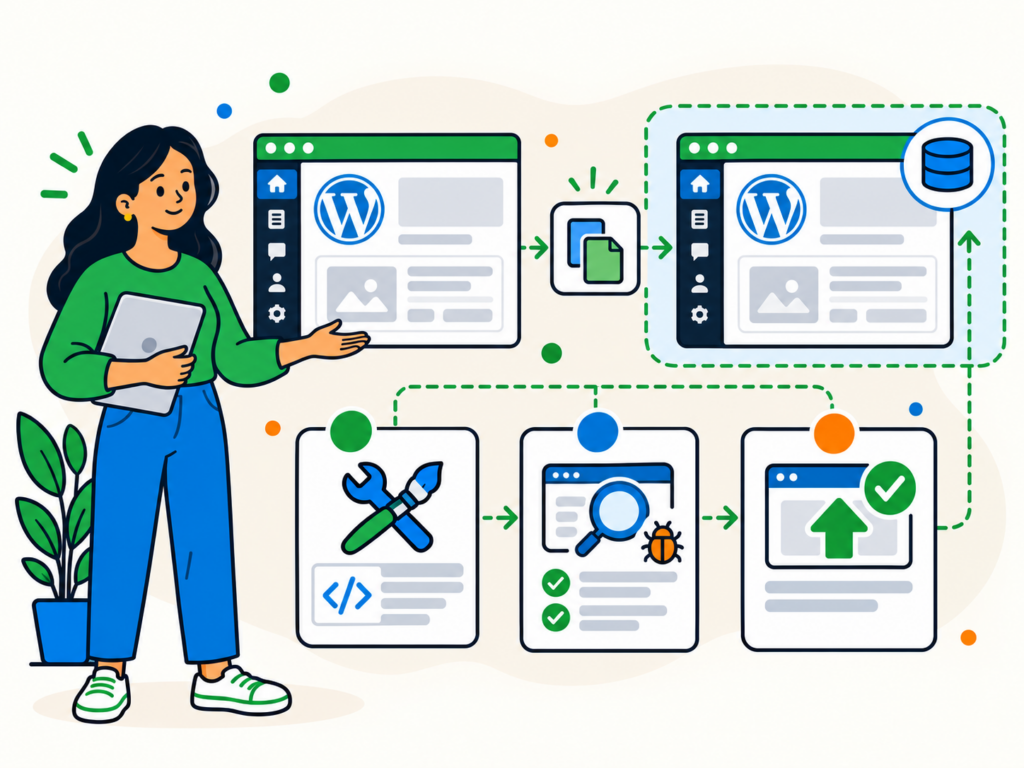
A Simple Git Workflow for WordPress
You don’t need to master every Git command before it becomes useful.
A straightforward workflow can help you manage custom WordPress code while keeping changes organised.
The following example assumes you already have a properly configured Git repository.
Step 1: Work on a local development copy
Start with a local development environment rather than editing production files directly.
A local WordPress installation gives you somewhere to change theme or plugin code without immediately affecting visitors.
Make sure the project includes the files you intend to track with Git.
Your local database and uploaded media can be managed separately as appropriate for the project.
Step 2: Create a branch for your changes
If you’re developing a new feature or fixing a problem, create a separate branch.
For example, you might use a branch named fix-navigation.
This makes it easier to keep the work separate from other development until it’s ready for review.
Even if you’re the only developer, branches can help organise changes and reduce confusion.
Step 3: Make and review your code changes
Edit the relevant theme, plugin or other project files.
Before recording a commit, inspect what has changed.
A few useful Git commands include:
git statusshows modified, staged and untracked files.git diffhelps you review changes that haven’t yet been staged.git addstages selected content for the next commit.git commitrecords the staged changes in the local repository.git pushsends the relevant local commits to a configured remote repository.
You don’t have to use the command line for every task. Graphical Git clients provide ways to carry out many of these actions.
It’s worth learning what the commands mean, even if you prefer a graphical interface.
Step 4: Share and review the changes
Once you’ve committed your work, you can push it to a remote repository if your project uses one.
Another developer can then review the proposed code before it’s merged.
For a larger project, automated checks may run at this stage.
These could include coding standards, tests or checks that required files are present.
The important point is that the code has been recorded and reviewed before being considered for deployment.
Running git push does not automatically publish the changes to WordPress. That only happens if you’ve configured a separate system to deploy them.
Step 5: Test the changes on staging
Once the relevant code has been reviewed, deploy it to a suitable staging environment.
Staging gives you an opportunity to test the changes in a WordPress website before updating production.
Check the features affected by your work and any important related functionality.
For example, if you’ve changed a custom WooCommerce integration, test the relevant product and checkout behaviour using safe test data and payment settings.
Our guide to creating a WordPress staging site explains how to set up a separate testing environment.
Keep in mind that Git’s staging area, where files are prepared for a commit, is completely different from a WordPress staging website.
Step 6: Deploy approved changes and verify production
After the code passes review and testing, deploy the approved version to the live website using your established deployment process.
For some projects, this might involve an automated deployment pipeline. Others may use a managed hosting integration or carefully controlled file transfers.
Create or verify an appropriate backup before making production changes.
If the deployment requires database changes, review those separately and protect any newer live information.
After deployment, check the website’s important pages and functionality.
Don’t assume that everything will behave identically simply because the changes worked on staging.
For more detail on managing updates safely, see How to Update WordPress Safely.
Git, Staging, Deployment and Backups: What’s the Difference?
Git, staging, deployment tools and backups are often mentioned together because they can all contribute to a safer WordPress workflow.
But each serves a different purpose.
| Tool or process | Main purpose |
|---|---|
| Git | Track and review changes to version-controlled files |
| WordPress staging | Test website changes in a separate environment |
| Deployment process | Transfer approved changes to the intended website |
| Website backups | Recover website files and data when something goes wrong |
A well-managed WordPress development process may use all four.
Git doesn’t replace WordPress backups
Git can help you recover an earlier version of tracked code.
For example, if a custom plugin update introduces a problem, you may be able to restore the previous code from Git.
But this won’t automatically restore your WordPress database, uploaded media or server configuration.
It also won’t reverse customer orders, account changes or other live transactions.
If a plugin update changes the database structure, restoring the previous plugin code might not even be compatible with the changed database.
That’s why you still need reliable, independently stored and restorable backups.
For a broader overview of backup planning, see our WordPress backup strategy infographic. Remember that version control and recoverable backups are separate safeguards.
Git doesn’t remove the need for staging
Git can confirm which code was changed, but it can’t guarantee that the code will work correctly on your website.
A change might introduce a plugin conflict, depend on a missing PHP extension or behave differently with production settings.
Staging helps identify these problems before the code is deployed to the live site.
Even then, final production testing remains important.
Git doesn’t automatically reverse a failed deployment
If an earlier commit is available, you may be able to redeploy the previous version of the code.
But a safe rollback depends on how the deployment was performed.
Database migrations, deleted files, updated settings or external changes might need separate recovery steps.
An older commit is therefore not the same thing as a complete rollback plan.
Useful Git Tools for WordPress Developers
You don’t need an extensive collection of tools to start using Git.
A small, well-understood setup is often enough.
Git and its official documentation
You can install Git on your computer and use it through a terminal or compatible development application.
The official Git documentation includes installation guidance, tutorials and explanations of common workflows.
If you’re new to version control, start by learning repositories, commits, branches and how to review changes.
Sourcetree
If you prefer a visual interface, Sourcetree is a Git client available for macOS and Windows.
It lets you inspect commits, review file changes, manage branches and perform common Git operations without typing every command.
A graphical interface can make version control easier to understand, although you still need to know what each action does.
Remote repository hosting
Repository hosting services allow developers to store and share Git history remotely.
They can also provide code review, permissions and automation features.
Choose a service that suits your team, security requirements and existing development process.
Make sure access is limited appropriately, particularly for repositories containing proprietary website code.
Deployment services
Tools such as Buddy can connect repository activity to deployment workflows.
Depending on the configuration, a deployment pipeline might run tests, build assets, request approval and transfer selected files to a server.
These tools can reduce manual effort, but they still need careful setup.
A poorly configured automated deployment can create problems just as easily as a manual one.
Use appropriate access controls, testing, backups and post-deployment checks.
Original Git for WordPress Infographic
From the archive: We originally published the infographic below in 2018. It explains the fundamentals of Git and WordPress development, but some tools and workflows shown have since changed.
Refer to the updated guidance above for current recommendations, particularly the distinction between Git, backups, staging and deployment.

Frequently Asked Questions
Does every WordPress website need Git?
No.
If you manage a straightforward WordPress website using its dashboard and don’t develop custom code, you may not need to work with Git directly.
However, Git becomes increasingly useful when a website has custom themes, custom plugins or ongoing development work.
Your developer or hosting provider may already use version control as part of their workflow.
Can Git back up my WordPress website?
Not completely on its own.
Git can preserve the history of files intentionally tracked in a repository.
It doesn’t normally include the WordPress database, media uploads, customer transactions or every part of the hosting environment.
Use a separate backup system that protects the website components you may need to restore.
Does git push update my live WordPress website?
Not by default.
git push transfers commits to a remote Git repository.
A separate deployment system can be configured to update a website when code is pushed, but that behaviour isn’t built into Git itself.
Always understand your project’s deployment configuration before pushing changes.
Can I use Git without learning the command line?
Yes.
Graphical Git clients such as Sourcetree let you perform many everyday operations through a visual interface.
However, it’s still useful to understand repositories, branches, commits and what happens when changes are pushed or merged.
Should I put my entire WordPress installation in Git?
Not necessarily.
Many WordPress projects track custom themes, plugins and project-specific code while managing WordPress core, third-party dependencies, uploads and the database separately.
Other projects use a broader repository structure.
The right approach depends on your hosting, development workflow and deployment requirements.
Whatever you choose, avoid committing sensitive credentials or unnecessary runtime files.
Can Git undo a broken WordPress update?
Git may help restore an earlier version of code that it tracks.
However, a WordPress or plugin update can also change the database, settings or other components.
Rolling back code alone may not fully reverse those changes.
A reliable recovery process should include suitable backups, compatibility checks and testing.
Make WordPress Development More Reliable
Git is a useful tool for keeping WordPress development organised.
It helps developers track changes, work on separate features, review code and maintain a clearer history of their projects.
Whether you’re working alone or with a development team, these benefits can make it easier to understand what changed and manage future improvements.
But Git works best as part of a broader process.
Version control records your code. Staging helps you test it. Deployment tools publish approved changes. Backups provide a way to recover important website data.
Used together, these safeguards can reduce avoidable mistakes and make WordPress development more manageable.
If you need help with custom WordPress changes, development problems or a safer deployment process, explore our one-off WordPress services.
We can help you identify the work required and choose an appropriate way to move forward.