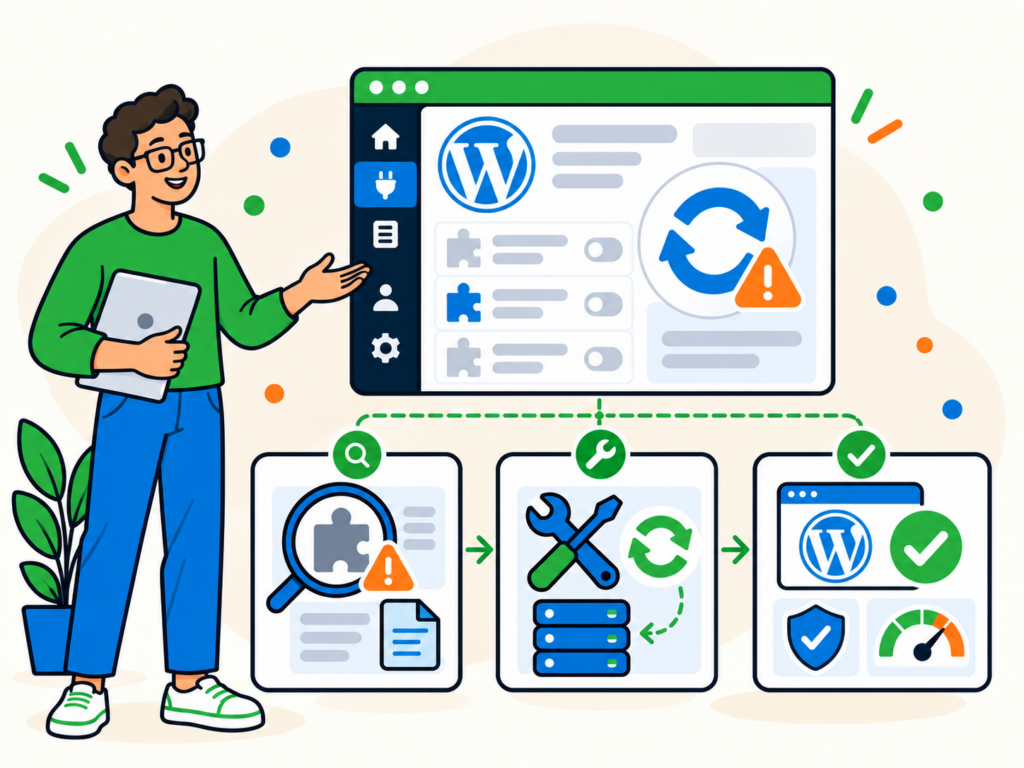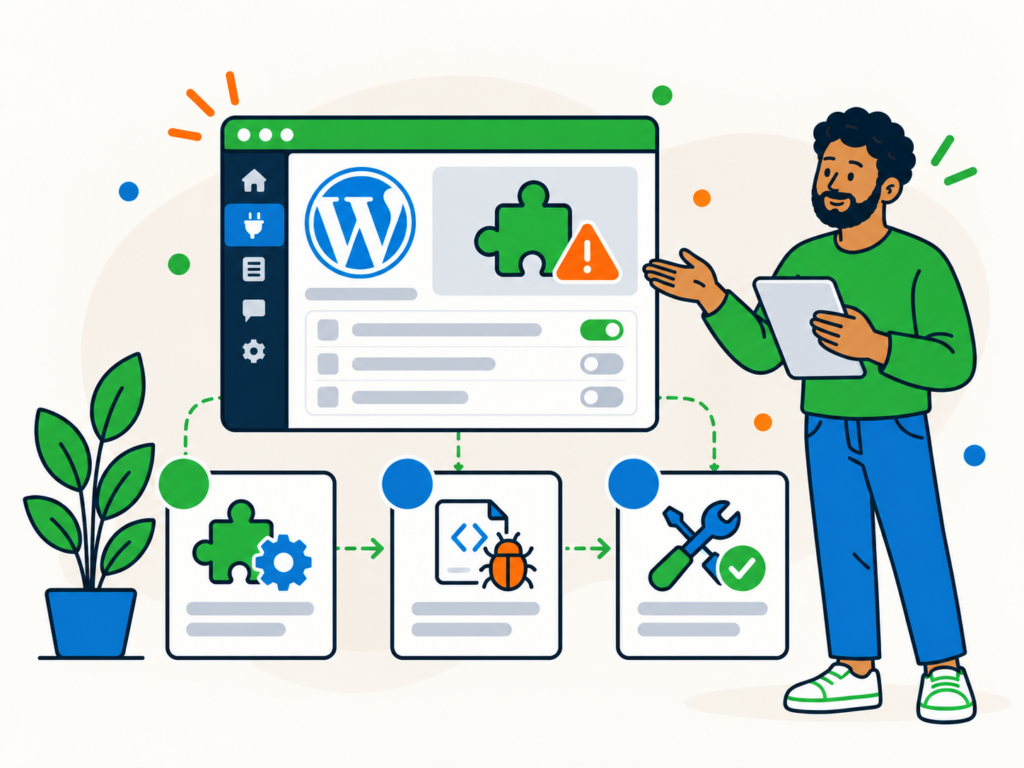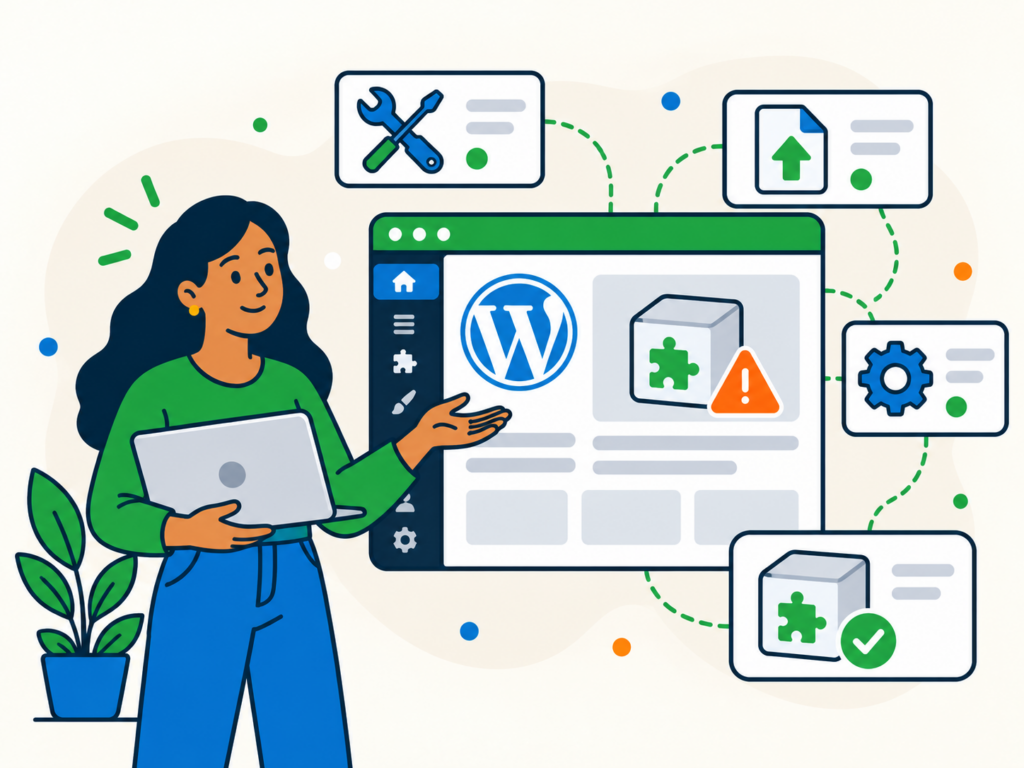
WordPress errors can appear without much warning. A page might stop loading, an update might fail, or your entire website might display an unfamiliar error message.
The important thing is to identify what has gone wrong before attempting a fix. Similar symptoms can have very different causes, from plugin conflicts and PHP errors to hosting problems or incorrect configuration.
This guide covers common WordPress errors, what they usually mean and the safest ways to start troubleshooting them.
Before you start troubleshooting
A few initial checks can save time and prevent an existing problem from getting worse.
- Record the exact error. Note the message, affected URL and when the problem started. A screenshot can help, especially if the error is intermittent.
- Check what is affected. Does the entire website fail, or just one page? Can you still access the WordPress dashboard? Does the problem occur in a private browser window or on another connection?
- Think about recent changes. WordPress updates, new plugins, theme changes, hosting migrations and configuration changes can provide useful clues.
- Check your hosting status and logs. PHP error logs, web server logs and hosting notifications may explain problems that WordPress cannot display itself.
- Take a backup before making changes. If the site is still accessible, make sure you have a recoverable backup of its files and database before modifying plugins, themes or configuration files.
Change one thing at a time and test the result. On a live business website, particularly one handling orders, bookings or memberships, use a staging environment for disruptive troubleshooting where possible.
1. There has been a critical error on this website
What it means: WordPress has encountered a problem that prevents part or all of the website from running correctly.
You might see:
There has been a critical error on this website.
Other sites may display a blank white page, sometimes called the white screen of death.
Common causes include a PHP fatal error, incompatible plugin or theme code, or a problem introduced by an update.
What to check:
- Check the site administrator’s email inbox for a WordPress recovery mode message. If available, its link may allow you to access the dashboard and identify the affected component.
- If the problem started immediately after a plugin or theme update, investigate that change first.
- Review the PHP error logs for the file, plugin or function responsible.
- Test a suspected plugin or theme safely, preferably on staging, rather than deactivating everything without a plan.
WordPress also provides debugging tools, but error details should not be displayed publicly on a live website. Use logging carefully and disable temporary debugging once the investigation is complete.
See the official WordPress debugging documentation for more information.
2. 500 Internal Server Error
A 500 Internal Server Error means the server encountered a problem while processing the request but has not provided a more specific explanation.
The error is not necessarily caused by WordPress itself.
Possible causes include PHP failures, faulty server configuration, incompatible code, resource limits or problems with server-level rewrite rules.
What to check:
- Look at the hosting error logs around the time the 500 error occurred.
- Check whether it affects every page or only specific URLs.
- Review recent plugin, theme, PHP version or server configuration changes.
- If the site uses Apache, investigate relevant
.htaccessrules when the evidence points to a rewrite or configuration problem.
Nginx does not use .htaccess, so changing that file will not fix an Nginx configuration issue.
Avoid repeatedly increasing PHP memory limits or replacing WordPress files without identifying the underlying problem. A server log will often provide a more useful starting point.
3. Error establishing a database connection
WordPress needs a working database connection to retrieve posts, pages, settings and other website information.
If that connection fails, visitors may see:
Error establishing a database connection
The error can result from incorrect database credentials, an unavailable database server, exhausted hosting resources or a database service problem.
What to check:
- Check whether your hosting provider has reported a database outage.
- Confirm that the database service is running and accessible.
- If database settings were recently changed, carefully verify the database name, username, password and host in
wp-config.php. - Review the hosting logs for connection failures or resource-related errors.
Do not reset database passwords, change database tables or attempt repairs without understanding the consequences and having a suitable backup.
For more detailed troubleshooting, follow our guide to fixing the error establishing a database connection in WordPress.
4. WordPress 404 errors and broken permalinks
A 404 error means the requested URL could not be found.
Sometimes this is expected because a page was removed or its URL changed. In other cases, an existing WordPress page returns a 404 even though it is still published.
This can happen after a migration, a change to permalink settings or a problem with the web server’s rewrite configuration.
What to check:
- Confirm the page exists, is published and has the expected URL.
- Check whether other pages work normally.
- If several existing pages suddenly return 404 errors, visit Settings > Permalinks and save the existing permalink configuration without changing its structure. This can refresh WordPress rewrite rules.
- If the problem continues, ask your hosting provider to check the relevant Apache or Nginx rewrite configuration.
If the page was genuinely deleted or moved, refreshing permalinks will not bring it back. You may need to restore the content, correct the link or create an appropriate redirect.
5. Failed WordPress updates and maintenance mode
WordPress temporarily enters maintenance mode while certain updates are being installed.
During this process, visitors may see:
Briefly unavailable for scheduled maintenance. Check back in a minute.
This message is normally temporary. However, an interrupted or failed update can leave the website unavailable or cause other errors.
What to check:
- Allow an update that is still running to finish.
- Check the WordPress Updates screen and any available update logs.
- Look for file permission problems, insufficient disk space or PHP errors.
- Verify whether WordPress core, plugin or theme files were updated successfully.
WordPress uses a .maintenance file in its installation directory during updates. If a failed update leaves maintenance mode active, the file may require attention.
Before manually removing it, confirm that no update is still running. Then verify whether the interrupted update completed correctly rather than assuming that removing the message has fixed the problem.
If a plugin or theme update failed, check its compatibility and obtain a clean copy from its original developer before attempting another installation.
6. The package could not be installed
This error usually appears when WordPress cannot install a theme or plugin from an uploaded package.
The accompanying message is important because it can identify the specific problem.
For example:
The package could not be installed. The theme is missing the style.css stylesheet.
This often happens when the uploaded ZIP file is not the installable theme package. Some commercial theme downloads contain documentation, licences and additional files alongside the actual theme ZIP.
Other causes can include incomplete downloads, incorrectly structured packages, file permission problems or insufficient server storage.
What to check:
- Confirm that you are uploading the correct WordPress theme or plugin ZIP file.
- Download a fresh copy from the original developer if the package may be damaged.
- Check the exact installation error before changing server settings.
- If the error relates to file permissions or storage, investigate those issues with your hosting provider.
For a more complete explanation, read our guide to fixing the Package Could Not Be Installed error in WordPress.
7. Too many redirects
A redirect loop occurs when a browser is repeatedly sent between URLs without reaching the intended page.
Browsers may display a message such as:
ERR_TOO_MANY_REDIRECTS
This can happen when WordPress, your hosting server and a CDN or security service have conflicting redirect or HTTPS settings.
For example, one layer might redirect visitors to HTTPS while another incorrectly sends them back to HTTP.
What to check:
- Confirm that your WordPress Address and Site Address settings use the intended domain and protocol.
- Check whether HTTPS redirects are configured in more than one place.
- Review recent domain, SSL certificate, hosting or CDN changes.
- Test whether the issue occurs in another browser or after clearing relevant browser cookies and cached redirects.
If the website uses a reverse proxy or CDN, the origin server must correctly identify the visitor’s original protocol.
Do not change WordPress URLs or database settings blindly. Incorrect changes can make the administration area inaccessible or create additional redirect problems.
8. 403 Forbidden errors
A 403 Forbidden response means access to the requested resource has been denied.
Unlike a 404 error, this does not necessarily mean the page or file is missing.
Possible causes include server permissions, access restrictions, security rules or a web application firewall blocking a request.
What to check:
- Determine whether the error affects everyone or only particular users, IP addresses or requests.
- Check whether the problem started after changes to security settings or file permissions.
- If your website uses a firewall or CDN, review its security logs for blocked requests.
- Ask your hosting provider to investigate server-level restrictions when appropriate.
Avoid disabling your firewall or weakening file permissions simply to make an error disappear.
A legitimate request may occasionally trigger a security rule, but the better solution is to identify the specific rule and configure a narrow exception where justified.
9. 502, 503 and 504 server errors
These errors often point to a problem involving hosting infrastructure, server resources or communication between services.
Although they can look similar to visitors, they mean different things:
- 502 Bad Gateway: A gateway or proxy received an invalid response from an upstream server.
- 503 Service Unavailable: The server is temporarily unable to handle the request, potentially because of maintenance or resource constraints.
- 504 Gateway Timeout: A gateway or proxy did not receive a timely response from an upstream server.
WordPress plugins, themes or demanding processes can sometimes contribute to these problems, but the error alone does not identify the cause.
What to check:
- Check your hosting provider’s service status.
- Note the error code, affected URL and approximate time.
- Check whether the error happens consistently or only during particular requests.
- Review web server, PHP and hosting resource logs.
- If a CDN or reverse proxy is involved, establish whether the error originates there or from the underlying server.
If the issue involves exhausted PHP workers, slow database queries or failing upstream services, your hosting provider may need to investigate.
Repeatedly refreshing the website is unlikely to resolve the underlying fault.
When to get professional help with WordPress errors
Not every WordPress problem requires specialist assistance. A broken permalink or incorrect plugin ZIP may be straightforward to resolve.
However, deeper investigation is worthwhile when:
- Your website or WordPress dashboard is completely inaccessible.
- An error keeps returning after an apparent fix.
- You cannot identify the cause from the available logs.
- The website handles live payments, bookings or other important transactions.
- You suspect malware, unexpected file changes or unauthorised access.
- Fixing the issue would require unfamiliar database, PHP or server configuration changes.
If you need help identifying and resolving a specific problem, Newt Labs offers one-off WordPress website repairs. We can investigate the reported fault and explain if additional work or another service is needed.
The safest approach is to understand the error, check the evidence and make controlled changes. A successful repair should address the cause, not just make the visible error disappear.