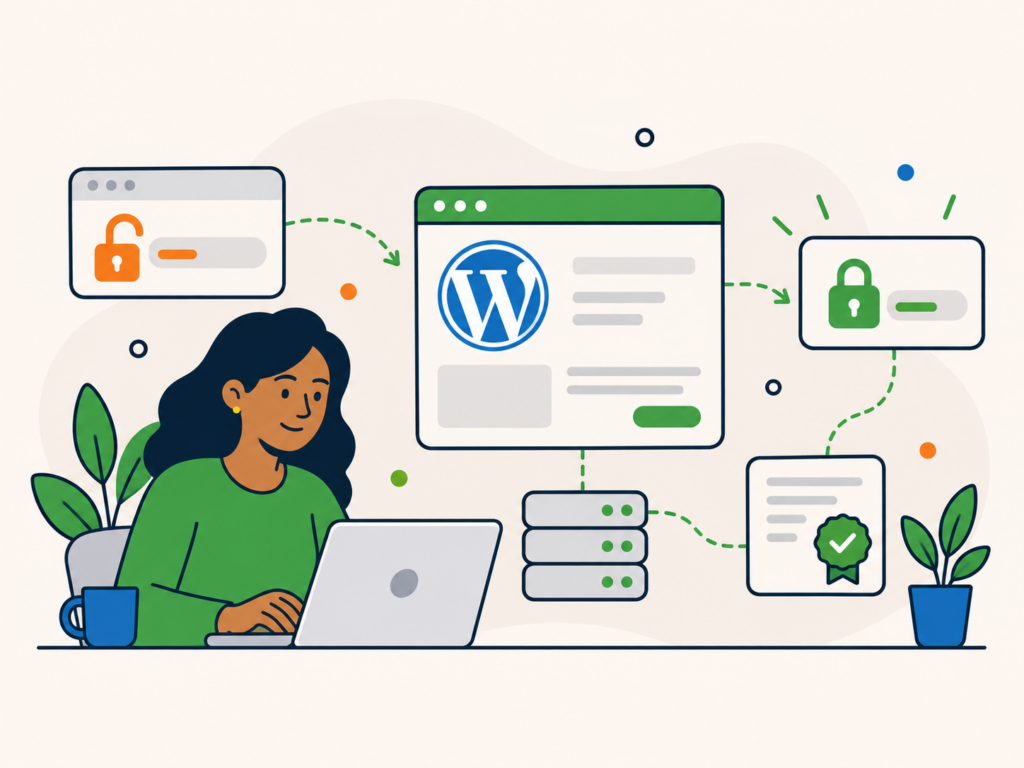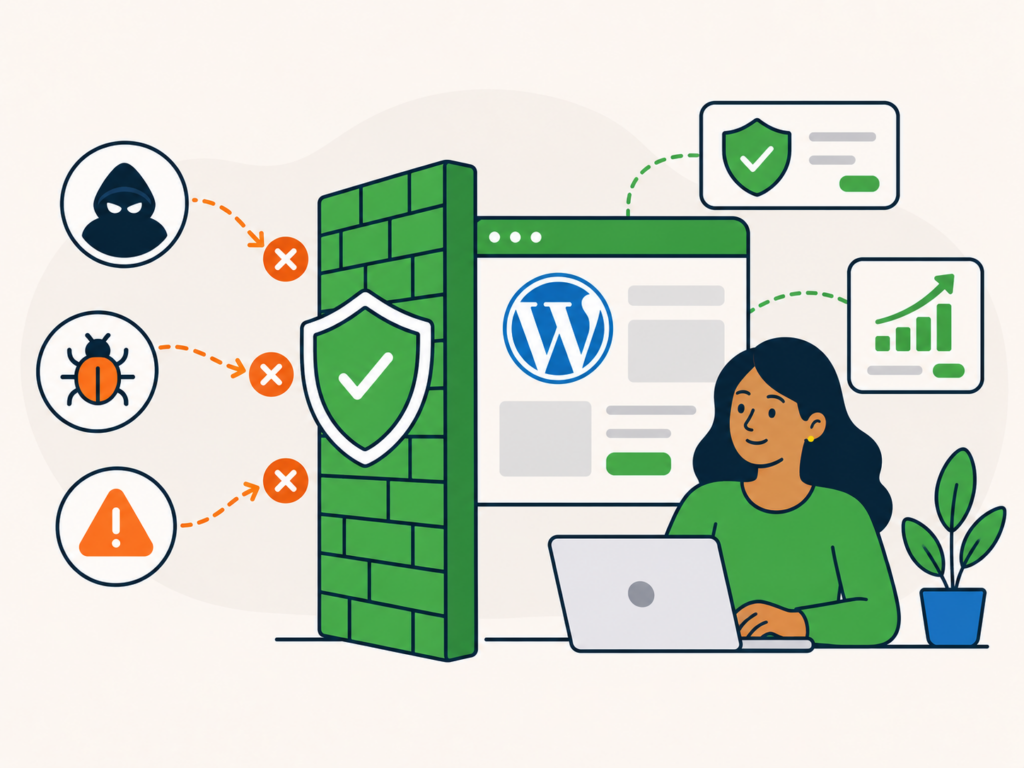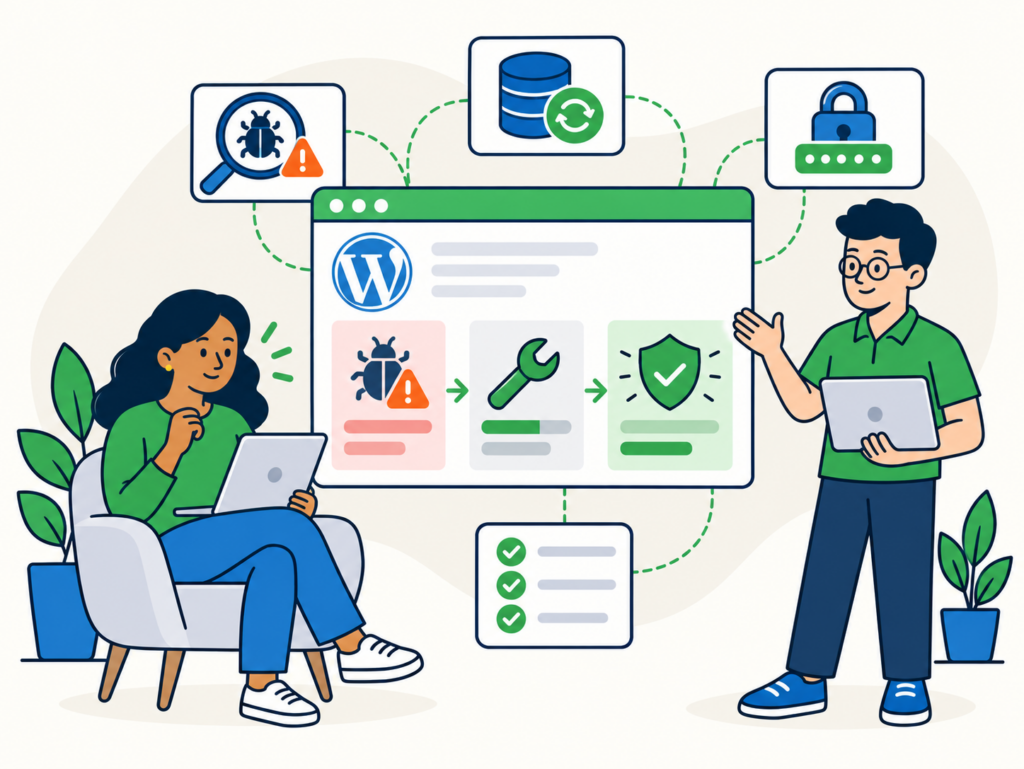
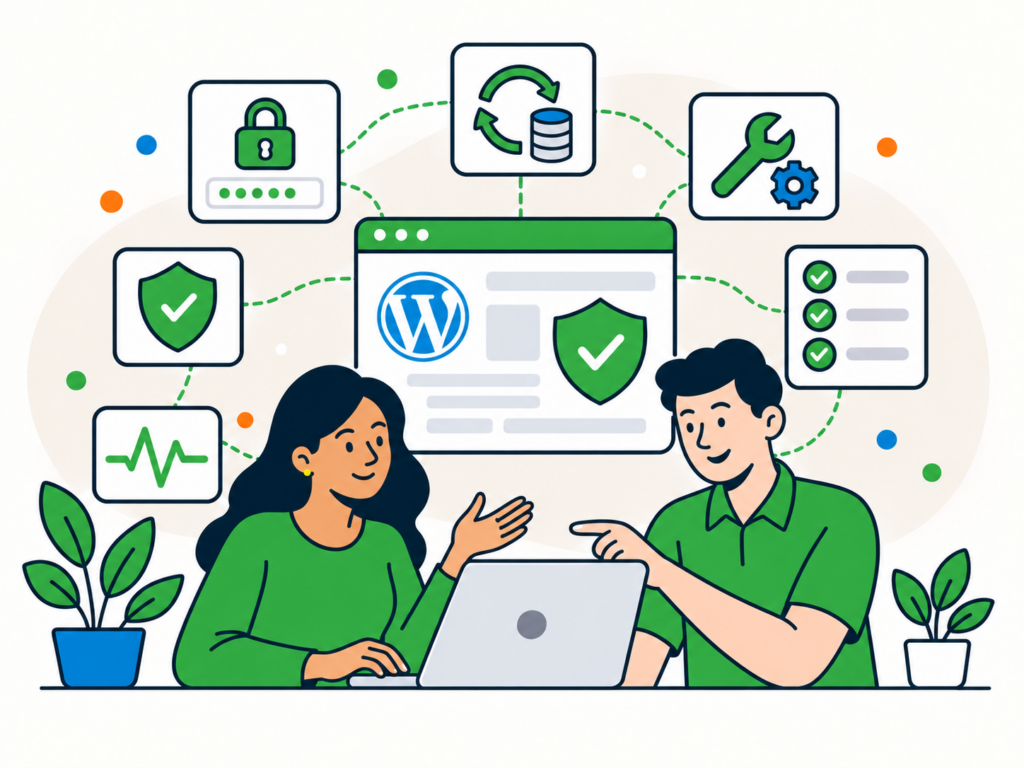
WordPress security is not about finding one plugin, changing one setting or hiding your login page.
A safer website comes from several layers working together. You want to reduce the chances of someone getting in, limit what they can do if an account or plugin is compromised, spot suspicious activity quickly, and have a reliable way to recover if something still goes wrong.
The good news is that many of the most important security measures are straightforward.
Here are ten WordPress security best practices that can make a meaningful difference.
1. Keep WordPress, plugins and themes up to date
Updates are one of the most important parts of WordPress security.
WordPress core, plugins and themes are software. Like any software, vulnerabilities can be discovered after release. When developers fix those vulnerabilities, the protection only reaches your website once the update is installed.
That means you should keep:
- WordPress core up to date
- active plugins up to date
- your active theme up to date
- any other themes or plugins you genuinely need maintained
Do not ignore an update simply because the website still appears to be working normally. A security vulnerability may have no visible effect until someone attempts to exploit it.
It is also worth reviewing updates rather than blindly installing everything and forgetting about it. Important websites should have reliable backups and a sensible process for checking that updates have not caused problems afterwards.
Unused software deserves attention too. If you no longer need a plugin or theme, removing it altogether can reduce the amount of software you have to maintain.
2. Use strong, unique passwords for every account
A strong password helps, but uniqueness matters just as much.
If you reuse the same password across WordPress, email, hosting and other services, a breach somewhere else can put your website at risk too.
Each important account should have its own password.
A password manager makes this much easier because it can generate and store long, random passwords without requiring you to remember them all.
Pay particular attention to accounts that could give someone control over the website, including:
- WordPress administrator accounts
- hosting accounts
- domain registrar accounts
- DNS or CDN accounts
- business email accounts
- backup services
- developer or server access
Your WordPress password is only one part of the chain. An attacker who gains control of your hosting or domain account may not need your WordPress password at all.
3. Protect important accounts with MFA or passkeys
A password should not have to protect an important account on its own.
Multi-factor authentication, usually shortened to MFA or sometimes called two-factor authentication, requires another form of verification in addition to the password.
Depending on the service, this might involve:
- an authenticator app
- a hardware security key
- a trusted device
- a passkey
- another supported authentication method
This makes a stolen password considerably less useful to an attacker.
Where available, passkeys and FIDO2 security keys can provide particularly strong protection against phishing because authentication is tied to the genuine service rather than relying on a password that can be copied.
Start with the accounts that could cause the most damage if compromised. WordPress administrators are important, but so are your hosting, email, domain and DNS accounts.
4. Give people only the access they need
Not everyone who works on a WordPress website needs to be an administrator.
WordPress includes different user roles for a reason. An Editor, Author or other restricted role may be enough for someone who only needs to manage content.
This follows the principle of least privilege: give each person only the access required to do their job.
It reduces risk in two ways.
First, somebody cannot accidentally change settings they do not have access to.
Second, if their account is compromised, the attacker inherits a smaller set of permissions.
You should also review users periodically.
Remove accounts belonging to people who no longer need access, downgrade administrator accounts that do not need administrator privileges, and avoid sharing one administrator login between several people.
Individual accounts provide clearer accountability and make it easier to remove one person’s access without affecting everyone else.
5. Choose plugins and themes carefully
Plugins and themes are one of WordPress’s biggest strengths, but every additional piece of software becomes something else you need to trust and maintain.
Before installing something, consider:
- whether it comes from a reputable source
- whether it is actively maintained
- whether it is compatible with your current WordPress version
- whether you genuinely need it
- whether an existing plugin already provides the same functionality
Be cautious with abandoned software, unofficial copies of premium plugins and themes, or downloads from sources you do not trust.
A paid plugin obtained from an unofficial source is not a bargain if you cannot trust the code inside it or safely receive future updates.
It is also sensible to keep the site’s software footprint under control. More plugins do not automatically mean an insecure website, but every unnecessary dependency creates another component to monitor, update and troubleshoot.
If something is no longer required, remove it rather than leaving it installed indefinitely.
6. Keep reliable backups and make sure they can be restored
Backups do not stop a website being attacked.
They do something equally important: give you another recovery option when something goes wrong.
A useful WordPress backup should cover the parts required to rebuild the website, including its database and relevant files.
For an important business website, consider:
- how often backups are created
- how many historic copies are retained
- whether copies are stored away from the website itself
- whether backups can be accessed if the hosting account has a problem
- how quickly the website could realistically be restored
Do not assume a backup is useful simply because a system says one exists.
A backup strategy is much more valuable when restoration has been tested and you know what the recovery process involves.
Keeping several historical restore points can also matter. If a compromise goes unnoticed for several days, the latest backup could already contain the problem.
7. Use a secure, properly maintained hosting environment
WordPress security does not stop at WordPress.
The server and hosting environment underneath the website also matter.
A good hosting setup should keep server software maintained, use sensible access controls, isolate services appropriately and provide a reliable foundation for running WordPress.
Secure access matters too. Where server access is required, encrypted methods such as SSH or SFTP should be used instead of sending sensitive credentials through insecure connections.
File ownership and permissions should also be appropriate for the way the server is configured. There is no single permission recipe that should be applied blindly to every WordPress installation.
If you manage your own server, that brings additional responsibilities around operating system updates, PHP, database software, web-server configuration, firewall rules, access controls, logging and monitoring.
If somebody else manages the infrastructure, make sure you understand which security responsibilities they handle and which still belong to you.
8. Monitor for malware and suspicious activity
Good security is not only about prevention.
You also need a reasonable chance of noticing when something has changed.
Monitoring can include several different things, such as:
- malware scanning
- file-change monitoring
- suspicious login activity
- unexpected administrator accounts
- security alerts
- unusual redirects or behaviour
- server and application logs
No single automated scan can prove that a website is completely clean. Different tools look for different indicators, and sophisticated compromises may require manual investigation.
The goal is therefore not to install a scanner and assume the job is finished.
Monitoring is another layer. It can help surface suspicious changes earlier so they can be investigated before a problem becomes larger.
If you want to investigate a site specifically for malware or vulnerabilities, that is a separate process from the preventative measures covered here.
9. Add layers such as a WAF and sensible login protection
A web application firewall, or WAF, can inspect traffic before it reaches parts of your website and block some malicious requests based on rules, behaviour or known attack patterns.
A WAF can be a useful security layer, particularly for filtering automated attacks and known malicious traffic.
It is not a replacement for maintaining the website.
A firewall cannot make an outdated vulnerable plugin safe, fix a compromised administrator password or guarantee that malware will never reach a website.
Login protection should be viewed in the same way.
Rate limiting, bot protection and controls around repeated failed login attempts can reduce automated abuse. They work best alongside strong unique credentials and MFA, not instead of them.
Some website owners also change the standard WordPress login URL. This may reduce automated noise, but hiding a login page should not be treated as a primary security control. If somebody can discover the new address or attack the site another way, the underlying protection still needs to stand on its own.
10. Have a plan for what happens if something goes wrong
No sensible security strategy should promise that a WordPress website can never be compromised.
The aim is to reduce risk and be prepared if one of your defences fails.
Before an incident happens, know the answers to questions such as:
- Who should be contacted?
- Who has access to the website, hosting, domain and backups?
- Where are clean backups stored?
- How would you temporarily restrict access if necessary?
- Which credentials may need to be reset?
- How would customers or other affected people be contacted if required?
- How would you determine what allowed the compromise to happen?
- How would you check that the website is genuinely safe before considering the incident resolved?
This is particularly important for websites that handle orders, customer accounts, memberships, personal information or other business-critical functions.
Cleaning visible malware is only one part of recovery.
You also need to understand how the site was compromised where possible, close the relevant gaps, reset affected credentials or keys when appropriate, update vulnerable software and monitor the website afterwards.
Smaller WordPress hardening measures that can still help
There are several additional measures you may come across when researching WordPress security.
Some are useful, but they should not distract from the fundamentals above.
Avoid predictable administrator usernames
If an older WordPress website still has an administrator account called admin, changing that setup can remove one predictable piece of information from automated login attempts.
It is a small hardening measure rather than a core security defence.
A unique username does not compensate for a weak or reused password, and it does not replace MFA.
If you do need to replace an old admin account, the safer approach is to create a new administrator account, protect it properly, confirm that it works, and only then remove the old account. Make sure any posts or other content belonging to the old user are reassigned when required.
There is normally no reason to start editing WordPress user records directly in the database just to achieve this.
Disable dashboard file editing where appropriate
By default, WordPress administrators may be able to edit plugin and theme files from the dashboard.
On websites where that functionality is not required, disabling the built-in file editors can remove one route for changing executable site files through a compromised administrator session.
It is useful hardening, but it does not prevent an attacker who has already gained another form of server or file access.
Use appropriate file permissions
Files should not be writable more broadly than necessary.
The correct ownership and permissions depend on the hosting environment, however, so avoid copying permission commands from an old tutorial without understanding how your server is configured.
If your hosting is managed for you and everything is working correctly, ask the host or administrator before changing server-level permissions yourself.
Limit repeated login attempts
Rate limiting and bot protection can make automated password guessing less effective and reduce unnecessary load from login bots.
Again, think of this as one supporting control.
Strong unique passwords and MFA should do the heavier lifting.
WordPress security works best in layers
The strongest approach to WordPress security is not particularly glamorous.
Keep software maintained. Protect accounts properly. Restrict access. Choose software carefully. Keep dependable backups. Use a secure hosting environment. Monitor what is happening. Add protective layers where they make sense. Know how you would respond to an incident.
Each measure covers a different part of the problem.
That matters because website compromises do not all happen in the same way. One incident might begin with a vulnerable plugin, another with a stolen password, another with a compromised external account.
Layered security means one mistake or failed control is less likely to become the only thing standing between an attacker and the whole website.
What if you think your WordPress site is already hacked?
The advice above is primarily about reducing the chance of a future security problem.
If your website is already redirecting visitors, showing security warnings, displaying unexpected content, creating unknown users or behaving suspiciously, the priority changes from prevention to investigation and recovery.
Avoid assuming that installing a security plugin or restoring the newest backup will automatically solve the underlying problem.
If you need help with an active compromise, WordPress Malware Removal is the one-off route for hacked or infected WordPress websites.
Once the immediate problem has been properly dealt with, you can then strengthen the website to reduce the chance of the same issue happening again.
Want ongoing WordPress security taken care of?
Keeping a WordPress website secure is an ongoing process rather than a task you complete once.
For businesses that would rather have updates, backups, monitoring and stronger security measures looked after as part of an ongoing service, the WordPress Security care plan provides a more managed approach.
If you prefer to manage the site yourself, use the ten areas above as a practical checklist and review them regularly as your website, users and software change.