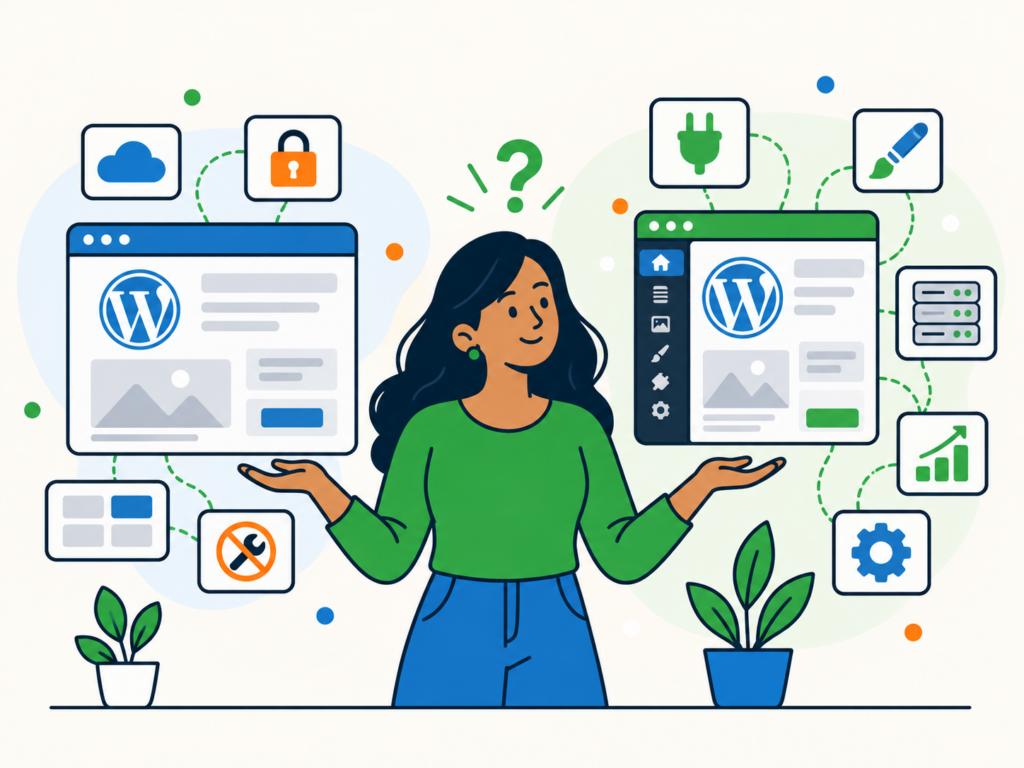
If you started your website on WordPress.com, you might eventually wonder whether you should move to self-hosted WordPress.
Perhaps you need more control over your hosting, want to introduce custom functionality or are reviewing the cost of running your website.
You may also have heard that WordPress.org gives you more freedom than WordPress.com. While there are differences, moving is not automatically the right decision for every website.
WordPress.com has expanded its features over time, including support for plugins, custom themes and online stores. Depending on your requirements, you might be able to achieve what you need without changing hosting providers.
This guide explains the differences between WordPress.com and self-hosted WordPress, when moving might make sense and what you need to consider before migrating your website.
1. WordPress.com vs WordPress.org: What’s the difference?
WordPress.com and WordPress.org are often described as two different versions of WordPress, but they use the same underlying WordPress software.
The main difference is how your website is hosted and managed.
What is WordPress.com?
WordPress.com is a hosted service that provides WordPress software together with hosting and a range of managed services.
You can create a website without arranging separate hosting or installing WordPress yourself.
WordPress.com takes care of many of the technical responsibilities associated with its hosting environment, including infrastructure management and aspects of security and maintenance.
It offers free and paid plans with different features, resources and support arrangements.
For someone who primarily wants to publish content and manage a website without looking after the hosting environment, this approach can be convenient.
What is WordPress.org?
WordPress.org is the home of the free, open-source WordPress software.
You can download WordPress and install it with a hosting provider of your choice.
This is commonly called self-hosted WordPress.
You do not need to own a physical server or manage one personally. Many hosting companies provide WordPress installation, backups, updates and other managed services.
The important difference is that you choose your hosting provider and the services you want them to handle.
Depending on your hosting arrangement, you may also have greater control over server configuration, files, databases and the wider technical environment.
However, the level of control and support available still depends on your hosting plan.
2. When might moving to self-hosted WordPress make sense?
Moving can be worth considering when your current hosting arrangement cannot accommodate a specific requirement.
The following situations are common reasons to investigate self-hosted WordPress.
You need a different hosting environment
Your website might require a particular server configuration, resource allocation or hosting location.
For example, a developer may need a specific PHP configuration or a hosting environment that supports an integration your current setup cannot accommodate.
Self-hosted WordPress gives you the option to choose a provider whose services match those requirements.
Before moving, check what WordPress.com already provides. Some advanced hosting features are available on its higher-tier plans.
You need greater technical control
A business website may eventually require custom development or access to parts of the hosting environment that are not available under its current plan.
Moving to a suitable hosting provider can provide additional options for managing files, databases, server settings and deployment processes.
However, self-hosted does not necessarily mean unrestricted access.
Shared hosting, managed WordPress hosting and cloud servers can have very different limitations and responsibilities.
The relevant question is whether a particular hosting arrangement gives you the access your website actually needs.
You want to change hosting providers
You may wish to move because of your existing hosting costs, performance requirements, support experience or business arrangements.
Self-hosting allows you to select a provider and consider moving again if your requirements change.
This does not guarantee that migration will be simple. The complexity depends on your website, its functionality and the services it relies on.
If you are comparing hosting options, our guide to choosing the right WordPress hosting explains the main factors to consider.
3. When might staying on WordPress.com make sense?
You do not need to move simply because your website has grown beyond a personal blog.
WordPress.com supports business websites, online shops and a range of additional functionality.
If your website already does what you need, moving could introduce costs and responsibilities without providing a meaningful benefit.
Before arranging a migration, consider the following.
Does your current plan meet your requirements?
You might already have access to the plugins, themes and features you need.
Would upgrading solve the problem?
If a missing feature is available on another WordPress.com plan, compare the cost and functionality of upgrading with the cost of moving.
Who would manage the website after migration?
WordPress.com handles many hosting responsibilities as part of its service. With self-hosted WordPress, you need to establish which responsibilities your new provider will handle and which remain with you.
Are you comfortable with your current support arrangements?
Different hosting providers offer different levels of assistance. A lower hosting price may not include the same support or management services.
If you mainly use WordPress to publish articles, update pages and manage everyday content, there may be little reason to change a hosting arrangement that already works well.
4. What about plugins, themes and e-commerce?
One of the biggest misconceptions about WordPress.com is that it does not support plugins or online shops.
That was a more significant distinction in the past, but it no longer describes the full range of WordPress.com services.
Plugins
Plugins extend WordPress with additional features, such as contact forms, booking systems, SEO tools and e-commerce functionality.
WordPress.com currently supports plugin installation on its paid Personal, Premium, Business and Commerce plans. Free sites need to upgrade to install plugins.
Self-hosted WordPress also supports plugins, subject to any restrictions imposed by your hosting environment.
However, plugin availability is not the same as compatibility.
A plugin may require particular server resources, another service or a specific technical configuration. It may also conflict with existing functionality.
Before moving for a particular plugin, confirm whether it is supported on your current WordPress.com plan and whether your intended new host can accommodate it.
Themes and customisation
Both WordPress.com and self-hosted WordPress offer options for changing your website’s appearance.
WordPress.com paid plans support installing themes, while self-hosted WordPress generally offers flexibility to install and develop themes within the limits of your hosting setup.
The more important consideration is what your particular website requires.
If you want to change colours, typography or page layouts, you may already have suitable tools.
If you need extensive custom development, your developer may require access to specific files, settings or deployment tools.
Changing hosts does not automatically improve your website’s design. You still need a suitable theme, compatible functionality and a clear plan for any customisation.
E-commerce
WordPress.com supports online selling, including WooCommerce.
Its Commerce plan includes WooCommerce and additional e-commerce tools, while WooCommerce can also be installed on other paid WordPress.com plans.
Self-hosted WordPress supports WooCommerce and other compatible e-commerce solutions.
When comparing options for an online shop, look at the actual requirements of your business.
These might include payment gateways, shipping integrations, product types, subscriptions, customer accounts and the performance requirements of your store.
Also consider the ongoing work involved in maintaining a website that processes orders and customer information.
Moving an established shop requires particular care because orders, payments and other live activity may continue while the migration takes place.
5. What does self-hosted WordPress cost?
WordPress software is free to download and use, but running a self-hosted website is not necessarily free.
The total cost depends on your hosting arrangement and the services your website requires.
You may need to budget for:
- Hosting: The server resources and services required to run your website.
- Domain registration: The cost of registering and renewing your domain name.
- Premium themes and plugins: Any paid software, licences or ongoing subscriptions you use.
- Maintenance and security: Updates, backups, monitoring and other work required to keep the website running.
- Technical support: Assistance with problems, changes or custom development.
Some hosting providers include several of these services. Others charge separately or expect you to manage them yourself.
WordPress.com also has different plan prices, features and billing arrangements, so the comparison needs to be made against the plan you actually use or would need.
For example, a low-cost hosting package might appear cheaper than your existing WordPress.com subscription. But if you also need to purchase backup services and pay someone to maintain the website, the overall cost could be different.
Equally, a suitable self-hosted package may provide a better fit for a particular business without requiring unnecessary additional services.
Rather than comparing headline prices alone, compare the complete annual cost of running your website, including the time and support required to manage it.
6. What happens to your content and website when you move?
Moving away from WordPress.com does not mean abandoning WordPress or starting again with an entirely different content management system.
However, what transfers depends on the migration method and how your existing website was built.
Do you own your WordPress.com content?
Yes. WordPress.com’s terms state that it does not own the content you publish and that you retain your existing ownership rights.
Hosting your website with WordPress.com is not the same as transferring ownership of your written content to the company.
It is worth distinguishing several separate things:
- Your rights to the content you create and publish.
- Your domain name and its registration arrangements.
- Your access to website files, databases and hosting configuration.
- The licences and terms covering your theme, plugins and other services.
Moving to self-hosted WordPress changes your hosting arrangements and potentially your level of technical control. It does not automatically change the ownership of content or third-party software.
A content export is not a complete website migration
WordPress.com provides an export tool that can be used to move content to another WordPress website.
The standard export includes content such as posts, pages and comments. It also contains references that allow media files to be copied during import.
It does not include the complete Media Library files inside the export itself, nor does it transfer your theme design, customisations or plugins.
For a straightforward blog, a content export followed by some manual setup may be sufficient.
For a more complex website, you may need a full migration method that can transfer the database, themes, plugins, media and other relevant components.
WordPress.com also documents full-site migration options for eligible websites.
Before choosing a method, establish exactly what needs to transfer and what will have to be recreated or reconfigured.
What about subscribers and other services?
Do not assume that everything associated with your WordPress.com account will move automatically.
For example, newsletter subscribers may need to be migrated separately. WordPress.com provides a subscriber migration process using Jetpack for eligible destination websites.
You should also identify any external services connected to your website, such as email marketing platforms, analytics, payment services and contact form integrations.
Each connection may require its own checks or configuration after the migration.
7. What should you check before moving?
A successful migration involves more than copying your posts and pages to another server.
Before making changes to your live website, work through the following considerations.
Choose suitable hosting
Check that your intended hosting provider supports your website’s software, functionality, traffic and resource requirements.
Find out which services are included, who is responsible for maintenance and what support is available if something goes wrong.
Identify everything that needs to move
Make an inventory of your website’s pages, posts, images, themes, plugins, users and any custom functionality.
If you operate an online shop, include products, orders, customer accounts and relevant store integrations.
Check whether you have access to the files, exports, licences and credentials needed for the migration.
Plan your domain and email arrangements
You can change where your domain points without necessarily transferring its registration to another company.
Before changing DNS records, confirm where your domain is registered, where its DNS is managed and whether it is used for email.
Changing nameservers without preserving the required email records can interrupt email delivery.
If you intend to transfer your domain registration as well, treat that as a separate process.
Check URLs and redirects
Ideally, preserve your existing page and post URLs where practical.
If URLs must change, establish which redirects are needed so visitors and search engines can reach the appropriate new pages.
If your existing website uses a free wordpress.com address and your new website uses a different domain, investigate WordPress.com’s Site Redirect service.
This is different from pointing an existing custom domain at a new hosting provider.
Prepare a recovery plan
Make sure you have an appropriate backup or export of your existing website before starting.
For a full migration, confirm that the backup includes the components needed to restore the website, not just an XML content export.
Keep the original site available until you have verified the new one.
For websites that receive frequent orders, enquiries or other submissions, plan how changes made during the migration will be handled.
8. How do you move from WordPress.com to self-hosted WordPress?
The exact process depends on whether you are moving a simple blog or a website with custom functionality.
The following is a high-level sequence rather than a complete technical migration tutorial.
Step 1: Review your existing website
Identify your current WordPress.com plan, theme, plugins, domain arrangement and any external services.
Decide whether you need a content-only transfer or a complete website migration.
Step 2: Prepare your new hosting environment
Choose a suitable hosting provider and prepare the destination website.
Check that the environment supports the features and technical requirements you need.
Avoid changing your live domain before the new website is ready.
Step 3: Back up and transfer your website
Create a suitable backup of the source website.
For a content-only move, you can use WordPress.com’s export tool under Tools > Export, followed by WordPress’s import process on the destination.
For a full migration, use a suitable migration method that includes the required database, files, themes, plugins and media.
The method should match your website’s setup, rather than assuming that one tool or process works for every installation.
Step 4: Reconfigure and test the destination
Check the imported content, images, design and functionality.
Test important user journeys, including contact forms, navigation, logins and any online checkout.
Review links and image URLs to make sure they point to the intended website.
Where possible, perform these checks before directing visitors to the new hosting environment.
Step 5: Connect your domain
When the destination has been tested, update the relevant domain or DNS settings.
Confirm that any email-related DNS records and other required records remain correct.
Allow for DNS changes to take effect, and check that the website loads correctly over HTTPS.
Step 6: Verify the live website
After the move, check that your important pages, images and website features work on the live domain.
Confirm that redirects work where required.
For an online shop or another website with frequently changing data, make sure recent orders, enquiries and other important records are accounted for.
If you use newsletter subscriptions or external integrations, verify those separately.
Step 7: Retain the old site until you are satisfied
Do not immediately delete your WordPress.com website or cancel services that may still be needed.
Confirm that the migration is complete, the new website works and any necessary domain, email or subscriber arrangements have been addressed.
The time required for a migration varies considerably. A small blog and an established business website with custom functionality should not be treated as equivalent projects.
Should you move from WordPress.com to WordPress.org?
The decision comes down to what your website needs and how you want it to be managed.
WordPress.com provides managed hosting and a range of features that may already meet your requirements. Self-hosted WordPress gives you the option to choose a different hosting environment and potentially gain access to additional technical controls.
Neither arrangement removes the need to consider security, maintenance, costs and support.
If you are considering moving because of a specific limitation, first confirm whether it can be addressed within your current plan.
If a different hosting arrangement is necessary, identify what needs to move, understand who will manage the website afterwards and establish a migration plan before making changes.
The aim is not simply to move from WordPress.com to WordPress.org. It is to choose a hosting arrangement that supports your website’s requirements without introducing unnecessary complexity.