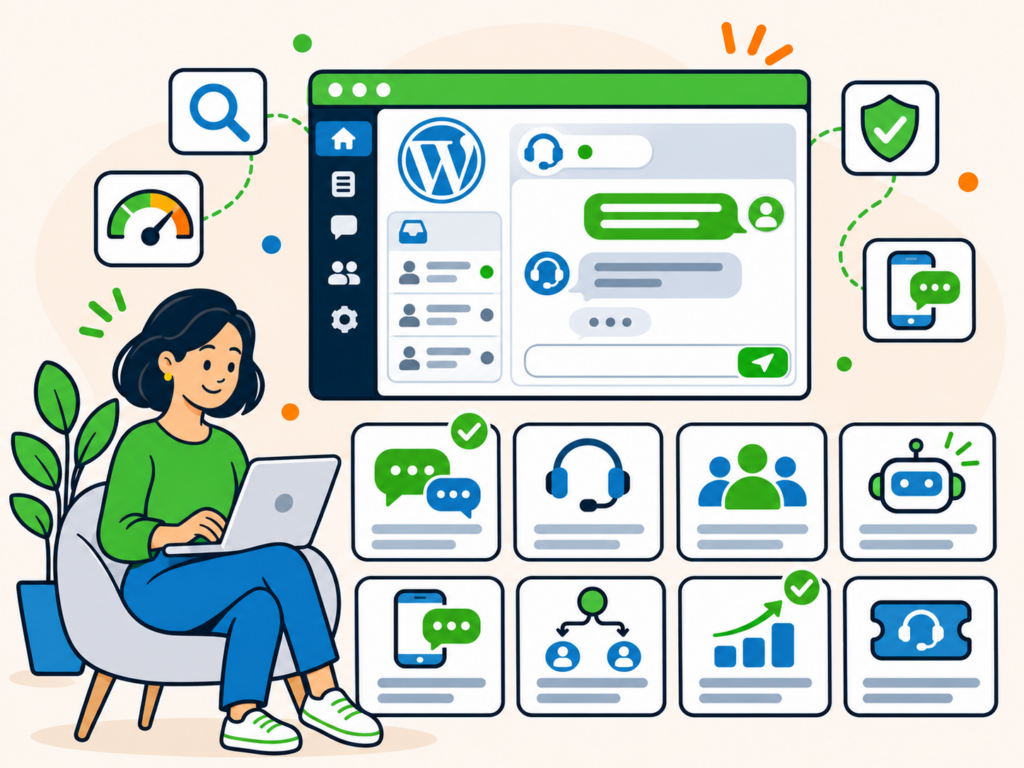
Live chat gives visitors a way to ask questions while they’re browsing your website, without having to send an email or wait for someone to return their call.
For businesses, it can be useful for answering sales enquiries, helping customers find information and resolving straightforward problems.
However, installing a chat widget doesn’t automatically mean you’ll provide better customer support.
Someone still needs to respond to conversations, manage incoming messages and follow up when an enquiry can’t be resolved immediately.
There are also significant differences between live chat platforms. Some provide simple messaging between visitors and staff, while others include chatbots, shared inboxes, CRM integrations and complete customer support systems.
In this guide, we’ll compare eight live chat services for WordPress, explain their strengths and limitations, and help you decide which one is right for your business.
What’s the Difference Between Live Chat and Chatbots?
Before choosing a service, it’s worth understanding the different types of website chat.
Live chat allows visitors to communicate with a real person through a chat window on your website.
For example, someone browsing an online shop might ask whether a product is available or which delivery options are offered. A member of your team can respond directly.
Chatbots provide automated responses instead.
Some follow predefined rules, such as asking visitors to choose between sales, support and billing. Others use artificial intelligence to interpret questions and generate answers based on information you’ve provided.
Many platforms combine both approaches.
A chatbot might answer common questions, collect contact details or direct a visitor to a relevant page. If the enquiry requires more assistance, the conversation can be passed to a human agent.
However, it’s important not to confuse having a chatbot with providing reliable 24-hour customer service.
Automated answers can be incomplete or incorrect, particularly when a question involves account details, unusual problems or information the chatbot hasn’t been given.
For many small businesses, a straightforward live chat widget or contact form may be more useful than a complicated automated system.
8 WordPress Live Chat Services Worth Considering
The following services offer different approaches to customer conversations, from free live chat to more advanced support platforms.
1. LiveChat
LiveChat is a dedicated customer messaging platform designed for businesses that regularly handle sales and support enquiries.
Developed by Text, the company behind LiveChat, ChatBot and HelpDesk, it offers a WordPress plugin for displaying a chat widget on your website.
Visitors can start conversations while browsing your pages, and your team can respond through the service’s web, desktop or mobile applications.
LiveChat also supports automated greetings, saved replies, visitor information and integrations with other business tools.
What makes LiveChat useful?
LiveChat is particularly suited to businesses with staff available to answer conversations throughout the working day.
For example, an online retailer could help customers with product questions before checkout, while a service business could respond to questions about its offerings.
The platform provides tools for handling conversations across a team, including chat assignments, visitor details and reporting features.
You can also configure the widget to collect messages when your team is offline, allowing you to follow up later.
What are the limitations?
LiveChat is a paid service, although a free trial is available.
There isn’t a permanent free plan for the full customer messaging platform.
Advanced AI capabilities, automation and integrations may depend on your plan or require additional products and allowances.
It’s also worth considering staffing. Paying for a sophisticated chat system provides limited value if nobody is available to respond.
Best suited to: Established businesses with dedicated staff handling sales and customer support conversations.
2. Tidio
Tidio combines live chat, ticketing and automated customer conversations.
It’s particularly relevant to online stores and businesses interested in handling common questions through a mixture of human support and automation.
Tidio offers a WordPress plugin, including integration options for WooCommerce websites.
Visitors can send messages through a chat widget, while your team manages conversations from Tidio’s dashboard and applications.
The platform also offers automated conversation flows and an AI agent called Lyro.
What makes Tidio useful?
Tidio gives businesses several ways to handle enquiries without requiring a separate tool for every type of conversation.
For example, an online shop might use live chat for product questions, an automated flow to guide visitors towards delivery information, and tickets for enquiries requiring follow-up.
Its free plan includes basic live chat functionality, making it possible to try the service before subscribing.
Tidio also provides reporting tools that can help you identify missed conversations and monitor response times.
What are the limitations?
The free plan has conversation limits.
At the time of writing, Tidio’s free plan includes up to 50 billable conversations per month. Those conversations are counted across the project rather than separately for each agent.
Lyro AI has a different allowance. Its initial free allocation of 50 AI conversations doesn’t automatically renew each month.
More extensive AI automation, conversation volumes and advanced features require paid subscriptions or additional allowances.
This distinction matters if you’re considering Tidio primarily because you want an AI chatbot handling large numbers of enquiries.
Best suited to: WooCommerce stores and growing businesses that want live chat with the option to introduce automation.
3. tawk.to
tawk.to is an attractive option for businesses looking for a free live chat service.
It provides a WordPress plugin that connects your website to the tawk.to messaging platform.
You can monitor visitors, respond to incoming messages and communicate with customers through desktop or mobile applications.
The service also includes ticketing and knowledge base functionality.
What makes tawk.to useful?
One of its biggest advantages is its free core offering.
tawk.to allows unlimited agents, conversations and websites without charging a subscription for the core live chat platform.
That makes it worth considering for small businesses that want to provide real-time assistance without committing to a recurring software fee.
For example, a small service business could display chat during office hours and let customers leave messages when nobody is available.
If an enquiry requires further investigation, the ticketing system can help organise follow-up work.
What are the limitations?
Although the core live chat service is free, optional extras and AI-related services can carry additional charges.
You should also distinguish between having a free chat widget and having someone available to answer it.
A small team might find that the real cost of live chat is the staff time required to monitor conversations.
The widget’s branding and customisation options are also worth reviewing before choosing the service.
Best suited to: Small businesses wanting a free, human-operated live chat system with ticketing and follow-up tools.
4. Crisp
Crisp is a customer messaging platform built around a shared inbox.
It allows businesses to collect website conversations in one place and collaborate on customer enquiries.
The platform provides a WordPress plugin for adding its chat widget to your website.
It also offers desktop and mobile applications, making it possible for team members to respond away from their desks.
What makes Crisp useful?
Crisp is particularly appealing when more than one person handles incoming messages.
Instead of leaving individual conversations scattered across different inboxes, the team can work from a shared conversation history.
For example, a small business might have one person responsible for sales enquiries and another dealing with customer support.
Both can use the same inbox while keeping track of what has already been discussed.
Crisp’s permanent free plan includes a website chat widget, a shared inbox and two seats.
That provides a useful starting point for a small team.
What are the limitations?
The free plan doesn’t include AI credits.
Automated chatbots, additional communication channels and more advanced support features depend on the selected paid plan or usage allowances.
It’s therefore important to distinguish between Crisp’s free shared inbox and its more sophisticated customer service capabilities.
If you mainly need a single person to answer occasional messages, you may not benefit from everything the platform offers.
Best suited to: Small teams wanting a shared inbox for website conversations, with room to add more advanced support tools.
5. Chaport
Chaport offers live chat and optional automation tools for businesses that want to communicate with website visitors.
Its WordPress plugin allows you to connect a Chaport account and display a chat widget without having to develop your own messaging interface.
You can respond through a browser or the available desktop and mobile applications.
Chaport also offers visitor information, chat history and tools for inviting visitors into conversations.
What makes Chaport useful?
Chaport provides a relatively straightforward way to introduce live chat to a WordPress website.
Its free plan supports two operators, unlimited chats and multiple websites.
For example, a small business with two people handling enquiries could use the free version to answer customer questions during working hours.
Visitors can still leave messages when operators are unavailable, allowing the team to follow up later.
The service also offers paid features for more involved communication workflows.
What are the limitations?
The free plan includes a limited chat history retention period, currently 60 days.
More advanced functionality, including saved replies, additional integrations, detailed reports and chatbot automation, depends on paid plans.
Chaport’s full chatbot builder is not part of the permanent free offering.
If you’re choosing the service primarily for automated customer support, make sure you understand which subscription includes the capabilities you need.
Best suited to: Small teams looking for straightforward live chat with affordable options for additional functionality.
6. Brevo Conversations
Brevo, previously known as Sendinblue, provides marketing and customer communication tools.
Its Conversations functionality allows businesses to communicate with visitors through a website chat widget.
For WordPress users, Brevo documents installing the widget through the Brevo tracker, which can be activated using its WordPress plugin.
That makes it a relevant option for businesses already using Brevo for email marketing or customer communications.
What makes Brevo Conversations useful?
The main advantage is the potential to manage customer interactions within an existing business platform.
For example, a company using Brevo for newsletters and marketing automation may prefer to introduce website chat without adding another unrelated service.
The Conversations widget can be configured through Brevo and displayed on the WordPress website.
You can customise its appearance and manage conversations through the associated inbox.
This can be useful when a business wants its marketing and customer communication tools to work together.
What are the limitations?
Brevo is a broader marketing platform rather than a dedicated WordPress live chat plugin.
You’ll need a Brevo account, and the available Conversations functionality depends on the current plan and account configuration.
Some advanced features may require additional subscriptions.
There’s also an important installation consideration.
Brevo’s tracker-based setup can add the Conversations widget to every website using the same tracker. If you only want chat on selected websites or pages, you’ll need to configure the appropriate visibility rules.
Because the tracker can also collect visitor activity, review its privacy and consent implications before enabling it.
Best suited to: Businesses already using Brevo that want website conversations alongside their existing marketing tools.
7. Zendesk
Zendesk is a customer support platform designed for businesses managing enquiries across different channels.
Its current messaging functionality can be added to websites through the Zendesk Web Widget.
This is distinct from the older Zendesk Chat system and Web Widget (Classic) used by some existing accounts.
Zendesk messaging can connect website conversations with support workflows, tickets and other customer service features.
What makes Zendesk useful?
Zendesk is best suited to businesses that need more than an isolated website chat window.
For example, an established customer support team might handle enquiries through email, website messaging and other channels.
Rather than managing each separately, the team can organise conversations through Zendesk’s support platform.
Depending on the plan and configuration, Zendesk also provides routing, reporting, knowledge base and AI-assisted support functionality.
Its messaging widget can help customers start a conversation from the website while keeping that interaction connected to the wider support process.
What are the limitations?
Zendesk can be excessive for a small website receiving only occasional enquiries.
Its main strengths come from the wider customer service platform, which generally requires a paid subscription.
AI features, advanced routing and other functionality vary by plan.
The installation process can also be different from adding a conventional WordPress plugin.
Zendesk documents adding the messaging widget through an embed script, so the appropriate method depends on your website and account setup.
Existing customers using legacy Zendesk Chat or Web Widget (Classic) should check the relevant migration documentation rather than assuming the newer messaging widget works identically.
Best suited to: Established support teams that already use Zendesk or need a complete customer service platform.
8. HubSpot
HubSpot offers live chat as part of its wider CRM and customer management platform.
Its WordPress plugin lets you add a chat widget to your website and connect conversations with HubSpot.
You can respond to visitors through a shared inbox while keeping relevant contact information within your CRM.
HubSpot also offers forms, email marketing and additional sales and customer service tools.
What makes HubSpot useful?
HubSpot is particularly interesting when a chat conversation could become a sales lead.
For example, a visitor might ask about the cost of a service or whether your business can help with a particular project.
Instead of treating that as an isolated conversation, you can use HubSpot to manage the contact and organise follow-up activity.
HubSpot provides free CRM and live chat functionality, making it possible to start without purchasing a dedicated live chat subscription.
That can be useful for a small business that wants to bring website enquiries and customer relationships into one place.
What are the limitations?
HubSpot introduces a larger platform into your website’s communication process.
You’ll need a HubSpot account, and customer information may be processed and stored outside WordPress.
More advanced automation, reporting, customer service workflows and AI features may require paid subscriptions.
If you don’t need CRM functionality, HubSpot could create additional complexity compared with a simpler live chat tool.
Best suited to: Businesses that want to connect live chat enquiries to CRM contacts and sales follow-up.
WordPress Live Chat Services Compared
Here’s a quick overview of the eight services and the types of businesses they suit.
| Service | Free option | Automation | Best for |
|---|---|---|---|
| LiveChat | Free trial | Paid features and plan allowances | Dedicated sales and support teams |
| Tidio | Limited free plan | Limited free AI trial, paid options | Online shops and automated conversations |
| tawk.to | Free core live chat | Optional additional services | Free staffed live chat |
| Crisp | Free plan with two seats | Paid AI and automation features | Shared customer inboxes |
| Chaport | Free plan with two operators | Chatbots on higher plans | Small support teams |
| Brevo Conversations | Depends on account and plan | Depends on Brevo configuration | Existing Brevo users |
| Zendesk | Paid support platform | Plan-dependent AI and messaging tools | Established support teams |
| HubSpot | Free live chat and CRM | Additional paid capabilities | CRM-linked enquiries |
The main difference isn’t simply whether a chat widget is free.
Some services charge for users or support plans. Others limit the number of conversations, AI responses or automated workflows.
You should also check whether the service offers live chat with real people, automated replies or both.
Before choosing, review the current pricing and feature limits on the provider’s website.
How to Choose the Right Live Chat Service for WordPress
The best live chat service depends on the type of enquiries you receive, how many people handle them and what you’re prepared to spend.
Here are the most important considerations.
1. Decide whether you really need live chat
Start by asking whether visitors need an immediate response.
An online store might benefit from helping customers who have questions before placing an order.
A service business handling complex enquiries may prefer a contact form that lets customers explain their requirements in detail.
If you can’t regularly monitor live chat, a contact form could provide a better experience.
Our guide to WordPress contact form plugins compares several options for collecting and managing enquiries without requiring a live conversation.
You can also use both approaches, provided visitors understand when someone is available.
2. Consider your team’s availability
Live chat creates an expectation that someone will respond reasonably quickly.
If your business operates between 9 am and 5 pm, make those hours clear.
Consider what happens when your team is busy, on a break or dealing with another customer.
Look for features such as:
- Online and offline status.
- Away messages and availability schedules.
- Notifications for unanswered conversations.
- Offline message collection.
- Chat assignment and internal notes.
- Email or ticket follow-up.
Don’t advertise round-the-clock live support unless you genuinely have the staff or processes to provide it.
3. Work out what automation would actually help
Chatbots can be useful, but they aren’t essential for every website.
If you regularly receive the same questions about opening hours, services or delivery options, automation might save your team time.
However, a chatbot needs accurate information and clear instructions about what it can and cannot answer.
It should also provide a way to contact a real person when necessary.
For businesses handling technical support, financial questions or account-specific problems, an incorrect automated answer could create more work than it saves.
Start with a small number of common questions before introducing more complicated workflows.
4. Check the complete cost
When comparing chat platforms, look beyond the advertised starting price.
Depending on the provider, costs may relate to:
- Number of team members.
- Monthly conversations.
- AI responses or automated resolutions.
- Additional messaging channels.
- Chat history retention.
- Reporting and integrations.
- Support or subscription levels.
For example, a permanently free chat widget might be enough for a small team, while advanced AI automation could require an entirely different subscription.
Choose based on your likely usage rather than the largest feature list.
5. Consider your existing business tools
If you already use HubSpot, Brevo or Zendesk, their chat functionality may be worth investigating before introducing another platform.
Keeping conversations connected to existing customer records can simplify follow-up.
However, avoid choosing a larger system solely because it offers more features.
The best solution is often the one your team can maintain and use consistently.
6. Check privacy, accessibility and performance
Live chat widgets often load JavaScript from external services and may process visitor information outside WordPress.
Review the provider’s data handling, retention controls and privacy documentation.
Make sure your website’s privacy information and consent arrangements accurately reflect the tools you use.
Also test how the widget behaves on mobile devices and whether it can be operated using a keyboard.
A chat icon shouldn’t cover important navigation, cookie notices, checkout buttons or other essential page content.
Finally, consider the effect of additional scripts on page loading and responsiveness.
A chat service should help visitors, not make the website harder to use.
How to Add Live Chat to Your WordPress Website
The exact process depends on your chosen service, but most installations follow a similar pattern.
Step 1: Choose a service and create an account
Review the available plans and select a service suited to your business.
Create an account with the provider and complete any initial setup steps.
You may need to add your website address, company information and team members.
If you’re using a free trial, check what happens when the trial ends.
Step 2: Install the plugin or chat widget
Many providers offer a dedicated WordPress plugin.
From your WordPress dashboard, go to Plugins > Add New Plugin and search for the provider’s official plugin.
Check the developer name before installing it.
Activate the plugin and connect it to your account.
If you’re unfamiliar with the process, see our guide on how to install WordPress plugins.
Some services use an embed script or a tracker rather than a standalone WordPress chat plugin.
Follow the provider’s installation instructions and avoid installing multiple copies of the same widget.
Step 3: Configure the appearance and availability
Adjust the chat widget to suit your website.
Depending on the service, you may be able to change its colours, position, welcome message and visibility.
Set your business hours and decide what visitors should see when nobody is available.
A clear offline message could invite them to leave their name, email address and question for a later response.
Make sure the widget doesn’t block important information or controls on smaller screens.
Step 4: Set up notifications and follow-up
Connect the appropriate staff accounts and enable notifications for incoming conversations.
If several people share responsibility, decide who should answer new messages.
Check how conversations are assigned, transferred and marked as resolved.
You should also establish what happens when a customer asks a question that cannot be answered immediately.
A ticket or follow-up email may be more suitable than keeping the visitor waiting in an open chat.
Step 5: Test the complete experience
Before relying on live chat, test it as though you were a customer.
Open the website in a private browser window and start a conversation.
Confirm that:
- The widget displays correctly on desktop and mobile.
- Your team receives the incoming message.
- Staff can reply successfully.
- The visitor can read the response.
- Offline messages are collected correctly.
- Notifications and follow-up processes work.
- Any automated responses behave as expected.
If you’ve introduced a chatbot, test questions it should answer and questions it should pass to a human.
Check the website’s performance and layout after installation, particularly on pages where visitors make purchases or submit forms.
Common WordPress Live Chat Problems
Live chat can be useful, but poor configuration can create a frustrating experience.
Here are some of the issues worth watching out for.
Visitors aren’t getting replies
The most obvious problem is a chat widget that appears available when nobody is monitoring it.
Visitors may wait for a response that never arrives.
Configure your availability settings properly and make sure your team receives notifications.
If you can’t offer live assistance, use an offline message form or direct visitors to another contact method.
The chat widget slows down the website
Chat services generally load resources from an external platform.
Depending on how those resources are loaded, they may affect page loading or responsiveness.
Test your website before and after installing the service.
If performance becomes worse, review the provider’s recommended loading method and check for conflicts with your caching or optimisation tools.
Avoid disabling useful website optimisations unnecessarily.
The widget overlaps other page elements
Floating chat buttons can interfere with mobile navigation, cookie notices and checkout controls.
Check your website at different screen sizes and scroll positions.
Some platforms let you adjust the widget’s placement or hide it on selected pages.
Use those settings where appropriate.
Chatbots give misleading answers
Automated systems can misunderstand questions or provide inaccurate information.
This is particularly important when visitors ask about prices, availability, policies or technical problems.
Test the chatbot against realistic customer questions and review its responses regularly.
Avoid letting it make promises your business cannot honour.
Provide an easy way for visitors to reach a person when automation isn’t suitable.
Important conversations aren’t followed up
A visitor might leave a message outside business hours or ask a question that needs further investigation.
Without a follow-up process, those enquiries can easily be missed.
Check how your chosen service stores conversations and whether it supports reminders, assignments or tickets.
Make sure someone is responsible for reviewing unresolved messages.
Customer information isn’t handled appropriately
Chat conversations may include names, email addresses, order details or other personal information.
Review the information your chat platform collects and stores.
Restrict access to appropriate team members and understand how long conversations are retained.
Avoid asking visitors to share passwords, payment card details or other sensitive information through ordinary website chat.
If your platform offers privacy controls or data retention settings, configure them to suit your requirements.
Which WordPress Live Chat Service Should You Choose?
There’s no single live chat service that suits every WordPress website.
If you want a free system for conversations with real people, tawk.to is a strong starting point.
Chaport is another option for a small team that wants straightforward chat functionality without an immediate subscription.
For businesses needing a shared customer inbox, Crisp is worth considering.
If you run an online shop and want to explore automated conversations alongside human support, Tidio provides a useful combination, although its free chat and AI allowances are limited.
LiveChat is better suited to businesses with dedicated staff handling regular sales or support enquiries.
For companies already using Brevo, its Conversations functionality may fit naturally into the existing setup.
Zendesk makes sense for established support teams that need messaging connected to wider customer service workflows.
And if you want to manage chat enquiries as leads within a CRM, HubSpot is worth investigating.
Most importantly, consider whether you can provide the experience visitors will expect.
A well-managed contact form can be more useful than an unattended chat widget, while a simple live chat service can be more effective than a complicated chatbot that doesn’t answer questions reliably.
Choose the option that fits your business, test it thoroughly and make sure every customer conversation has a clear next step.
Need help adding live chat to your WordPress website?
Newt Labs can assist with WordPress website changes, including straightforward chat widget installation, layout adjustments and troubleshooting.
If you need a more involved integration or automated support workflow, we can review your requirements and advise on the work involved.