If you’ve been using WordPress for a while, you’ve probably accumulated a few plugins. Perhaps you installed a contact form, added SEO tools, improved your backups or introduced features for customers.
Before long, your website might have 20, 30 or even 50 plugins installed.
But how many WordPress plugins are too many?
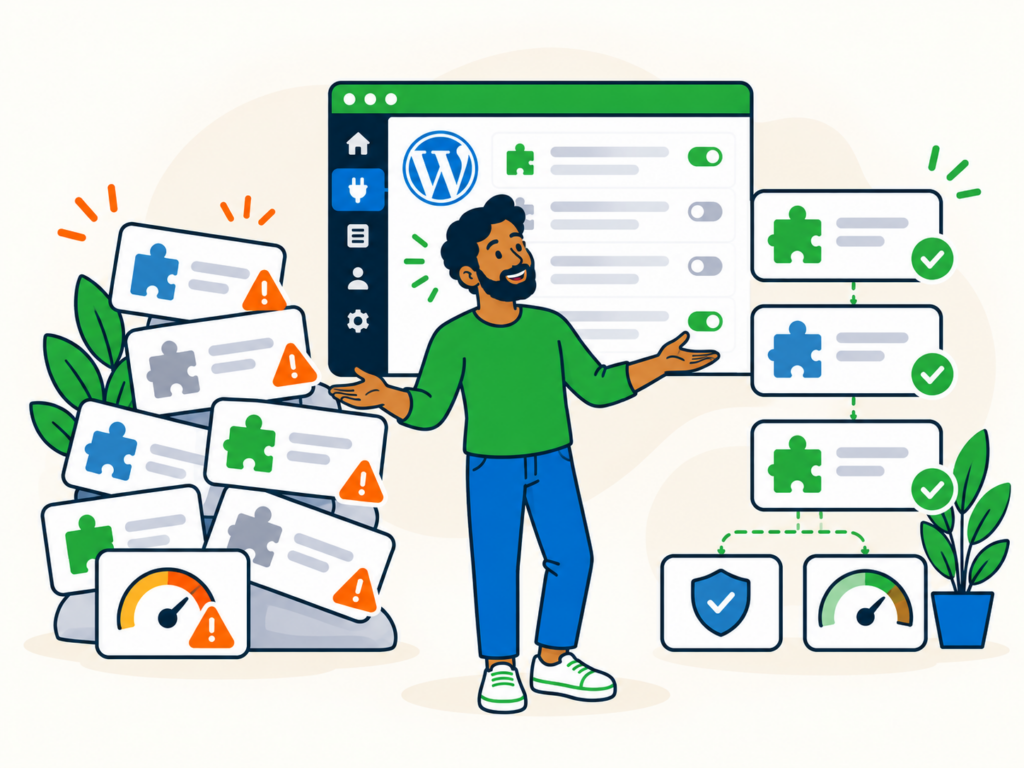
The answer is that there’s no fixed limit. A website with 40 well-maintained plugins can perform better than one with just 10 poorly optimised plugins.
What matters is how those plugins affect your website’s performance, security, compatibility and ongoing maintenance.
In this guide, we’ll explain when plugin quantity becomes a concern, how to identify unnecessary or resource-intensive plugins, and how to keep your WordPress website running smoothly.
How Many WordPress Plugins Are Too Many?
There’s no universal maximum number of WordPress plugins you should install.
WordPress doesn’t impose a simple numerical limit on plugins, and there’s no reliable rule that says 10 is safe while 30 is too many.
A straightforward business website might only need a handful of plugins. A WooCommerce store with subscriptions, shipping integrations, payment gateways and other functionality might genuinely need dozens.
Both websites could perform well when properly configured and maintained.
The problems begin when plugins introduce unnecessary complexity, resource consumption, security risks or conflicts.
For example:
- A website with 15 plugins could be slow because one plugin performs expensive database queries on every page load.
- A website with 35 plugins could remain fast because its plugins are efficient, properly configured and only load the functionality required.
- A website with 10 plugins could have security vulnerabilities because several extensions are outdated or unsupported.
- A website with 40 plugins could have no significant performance issues but still require more maintenance and compatibility testing.
The number is useful as a starting point for reviewing your website, but it doesn’t tell you whether something is wrong.
A better question is: Does every installed plugin serve a worthwhile purpose without creating unacceptable problems?
Why Plugin Quality Matters More Than Quantity
Plugins differ considerably in what they do and how they use your website’s resources.
Some add a small amount of functionality. Others provide entire systems for eCommerce, bookings, memberships or website management.
Some plugins require more resources than others
A simple plugin that adds one lightweight feature may have very little effect on performance.
A more complex plugin might run database queries, load JavaScript, communicate with external services or perform scheduled background tasks.
These operations can affect different parts of your website.
For example, a plugin could increase the time needed to generate uncached pages, while another could load large scripts that slow down the visitor’s browser.
A plugin might also perform well on ordinary pages but consume significant resources during checkout, imports or background processing.
This is why you can’t judge performance from plugin count alone.
More features can mean more complexity
Some plugins provide useful features that would otherwise require considerable custom development.
However, installing multiple plugins that perform overlapping tasks can make your website harder to manage.
For example, running two caching plugins with competing page-cache controls could create unexpected behaviour.
Likewise, two plugins that both try to manage the same SEO metadata may cause duplication or conflicting settings.
That doesn’t mean you should never use plugins in the same category.
A caching plugin and an image optimisation plugin, for example, might complement each other rather than compete.
The important thing is understanding which functionality each plugin provides and whether the components work together.
Free plugins aren’t automatically worse than premium plugins
The price of a plugin isn’t a reliable measure of its quality.
Some free plugins are actively maintained, thoroughly tested and supported by experienced development teams.
A paid plugin can still introduce bugs, security vulnerabilities or unnecessary overhead.
When assessing a plugin, look at its maintenance history, developer support, compatibility, security record and actual behaviour on your website.
The goal is to choose suitable software, not simply to install fewer free plugins or more premium ones.
Signs Your Website Might Have Too Many Plugins
There isn’t a number that automatically means your website has too many plugins, but there are warning signs worth investigating.
Your website has become noticeably slower
If your website has gradually slowed down as you’ve added more functionality, plugins may be contributing to the problem.
Potential symptoms include:
- Pages taking longer to load.
- Slow WordPress dashboard screens.
- Delayed checkout, form submissions or search results.
- High PHP or database usage.
- Scheduled tasks that take too long or fail.
- Intermittent timeouts during busy periods.
However, plugins are only one possible cause.
Hosting limitations, large images, inefficient themes, database problems, third-party services and poor caching can produce similar symptoms.
Investigate the evidence before removing plugins or upgrading your server.
Several plugins perform overlapping tasks
Look for extensions that duplicate features already provided by other plugins, your theme or hosting provider.
For example, your hosting platform might already provide page caching, backups or security monitoring.
Adding another plugin for the same purpose may be unnecessary, although the built-in service and plugin could also provide complementary features.
Review the actual functionality rather than assuming that every plugin within the same category is redundant.
You have plugins nobody uses
It’s common to install a plugin to test something and then forget about it.
Perhaps you tried several contact form plugins before choosing one, or installed a temporary migration tool that is no longer needed.
These plugins make your software inventory larger and create additional maintenance responsibilities.
Inactive plugins generally aren’t loaded during normal WordPress page requests, so they don’t necessarily slow down your website.
However, their files remain on the server, and outdated or vulnerable files can still create security concerns in some circumstances.
If a plugin is no longer needed, consider removing it safely rather than leaving it installed indefinitely.
Updates and compatibility problems are becoming difficult to manage
Every additional plugin is another component that may need updates, configuration and compatibility checks.
A website with many extensions can become difficult to maintain when individual plugins depend on particular versions of WordPress, PHP or other software.
If routine updates regularly cause problems, review whether unnecessary complexity or overlapping functionality is contributing.
Our guide to fixing WordPress plugin problems explains how to investigate conflicts without making several disruptive changes at once.
Unsupported plugins are creating security risks
A plugin that is no longer maintained may eventually become incompatible with newer software or contain an unresolved security vulnerability.
Even well-maintained plugins can occasionally develop vulnerabilities, so keeping them updated and monitoring security announcements is important.
The risk depends on the specific vulnerability and plugin functionality, not simply the number of extensions installed.
A small website running a single vulnerable plugin can be at greater risk than a larger website with many properly maintained ones.
How to Check Whether Plugins Are Slowing Down WordPress
If you’re concerned that your plugins are affecting performance, the next step is to measure what’s happening.
Don’t assume that removing several plugins will automatically improve your website.
Step 1: Establish your website’s current performance
Start with a tool such as Google PageSpeed Insights.
Test representative pages, such as your homepage, a typical article and important service or product pages.
PageSpeed Insights reports laboratory performance results and, where enough data is available, information about real visitors.
Pay attention to areas such as loading performance, responsiveness and layout stability.
Remember that performance varies depending on device, connection, caching, page content and other factors.
A low score can highlight a problem, but it doesn’t automatically identify the responsible plugin.
Step 2: Check whether the problem affects specific pages or functions
Look for patterns.
Is the entire website slow, or only a particular page?
Does the issue happen when visitors are logged in? Does it occur during checkout, when searching products or when using a particular form?
Does the dashboard load slowly even when public pages appear fast?
These distinctions matter because different features use server resources in different ways.
For example, a cached homepage may load quickly while a dynamic checkout request remains slow.
If the problem affects only one feature, start by investigating the plugins involved in that feature.
Step 3: Investigate database and server activity
For more technical troubleshooting, review available server logs and performance information.
Useful evidence may include:
- Slow PHP requests.
- High CPU or memory consumption.
- Database queries taking an unusually long time.
- PHP errors and warnings.
- Repeated external API requests.
- Scheduled background tasks consuming resources.
These checks can help distinguish a plugin-related issue from hosting or server configuration problems.
If you’re not comfortable interpreting server logs, ask your hosting provider or WordPress developer to help.
Step 4: Use Query Monitor for advanced troubleshooting
Query Monitor is a useful diagnostic plugin for developers and technically experienced WordPress users.
It can help investigate database queries, PHP errors, hooks, HTTP requests and scripts loaded by WordPress.
For some types of activity, it can also show which plugins or themes are responsible.
This makes it more useful for detailed troubleshooting than relying on a general page-speed score alone.
However, Query Monitor doesn’t automatically identify every source of poor performance.
It also introduces some diagnostic overhead, so it’s best used temporarily, preferably on staging or in another controlled environment.
Once you’ve completed your investigation, remove or disable tools you no longer need.
Step 5: Compare results before and after a controlled change
If you suspect a particular plugin, test it carefully on staging.
Record your baseline performance, temporarily deactivate the suspected plugin and repeat the same tests.
Keep other conditions as similar as possible, including the tested pages, caching state and relevant site settings.
Check whether performance improves consistently and whether disabling the plugin breaks any functionality.
A single faster test isn’t enough to prove that a plugin caused the slowdown.
If the evidence points towards a plugin, investigate its configuration, available updates and possible alternatives before deciding to remove it permanently.
Avoid deactivating important plugins on a live website simply to test speed. Doing so could interrupt payments, memberships, bookings or other essential services.
How to Audit Your Installed WordPress Plugins
Even if your website appears to be working well, periodically reviewing its plugins is worthwhile.
A straightforward audit can reveal unnecessary extensions, unsupported software and opportunities to simplify maintenance.
Step 1: Review your installed plugins
Log in to WordPress and navigate to Plugins > Installed Plugins.
You’ll see the plugins installed through the normal WordPress plugin system, including whether each is active or inactive.
Make a list of the plugins and their purposes.
For each one, establish what it does, whether it’s still needed and whether another component provides the same functionality.
Be aware that some hosting environments and multisite installations also use must-use or network-managed plugins that don’t appear or behave like ordinary plugins.
Don’t attempt to remove unfamiliar system-managed plugins without checking with your developer or hosting provider.
Step 2: Identify essential and optional functionality
Separate plugins into categories.
For example:
- Essential: Plugins required for checkout, bookings, memberships or other critical features.
- Useful: Plugins that provide valuable functionality but aren’t essential to the website’s basic operation.
- Temporary: Migration, testing or troubleshooting tools installed for a specific task.
- Potentially redundant: Plugins that duplicate other functionality.
- Inactive or unused: Plugins that no longer appear necessary.
This helps you prioritise what deserves further investigation.
It doesn’t mean you should automatically remove everything outside the essential category.
Step 3: Review maintenance, compatibility and security
For every plugin you intend to keep, check whether it is supported and compatible with your website.
Review available updates, developer documentation and known security concerns.
If a plugin hasn’t been updated recently, investigate why rather than assuming it is unsafe. A simple, stable plugin may require fewer changes than a complex one.
However, an abandoned plugin with unresolved vulnerabilities or known compatibility problems deserves prompt attention.
Also check whether premium plugins have valid licences and access to security updates.
Step 4: Use a simple decision checklist
Ask the following questions about each plugin:
| Question | Action if the answer is no |
|---|---|
| Does it serve a current purpose? | Consider removing it. |
| Is it maintained and supported appropriately? | Investigate its status and alternatives. |
| Is it compatible with your website? | Review requirements and known conflicts. |
| Does it provide something not already available? | Check for overlapping functionality. |
| Is its performance impact acceptable? | Investigate and measure the overhead. |
| Can it be removed without losing important features or data? | Check dependencies and prepare a recovery plan. |
You don’t need to remove every plugin that raises a question.
Instead, use the answers to decide which plugins should be kept, reconfigured, replaced or removed.
The aim is to retain the functionality your website needs without carrying unnecessary complexity.
How to Remove Unnecessary Plugins Safely
Once you’ve identified plugins that appear unnecessary, avoid deleting them all at once.
Plugin removal can affect website functionality and, depending on the plugin, may also affect stored data.
Step 1: Check dependencies and stored data
Before removing a plugin, establish whether another plugin or website feature depends on it.
For example, a WooCommerce extension may depend on WooCommerce itself. A membership add-on might rely on a separate membership plugin.
Also check whether the plugin manages information you need to retain, such as form submissions, booking records or customer data.
Some plugins remove their settings or data when uninstalled. Others leave data behind.
Review the developer’s uninstall instructions before proceeding.
Step 2: Take a reliable backup
Make sure you have a recent backup of the website’s files and database.
For important websites, test plugin removal on staging first.
If your website processes live orders, memberships or other regularly changing information, be cautious about restoring an earlier database backup because you could overwrite newer records.
A backup provides a recovery option, but restoring it isn’t always the best first response to a problem.
Step 3: Deactivate one plugin at a time
Navigate to Plugins > Installed Plugins and deactivate the plugin you want to test.
Check whether the website still works as expected.
Test any features that might depend on the plugin.
If the website is working correctly and you’ve confirmed the plugin is unnecessary, you can consider uninstalling it.
For important websites, allow sufficient time to observe functions that may only run periodically, such as scheduled emails or background tasks.
Step 4: Uninstall through WordPress
Once you’re confident the plugin is no longer required, use the normal WordPress uninstall process.
On the Installed Plugins screen, click Delete after deactivating the plugin.
WordPress will remove its files and run its uninstall procedure when one is available.
Don’t assume this removes every associated database record or that all plugin settings will be preserved.
The outcome depends on how the plugin was developed.
For detailed installation and removal instructions, see our guide to installing and managing WordPress plugins.
Step 5: Test and monitor the result
After removing a plugin, check the affected parts of your website again.
Confirm that forms, navigation, checkout and other important functions still work.
If performance was the reason for removal, compare the results with your original measurements.
You may find a worthwhile improvement, little measurable difference or a new issue that needs investigating.
Record what changed so you can identify the cause if another problem appears.
How to Keep Your WordPress Plugins Under Control
A plugin audit shouldn’t be a one-off exercise.
Good ongoing maintenance helps prevent unnecessary software from accumulating and makes future updates easier to manage.
Only install plugins you actually need
Before adding a new plugin, ask whether WordPress, your theme, hosting provider or an existing plugin already offers the functionality.
If you need additional software, choose a well-maintained option with suitable support and compatibility.
Our WordPress plugin installation guide explains what to check before installing.
Keep your software updated
Updates help address bugs, security vulnerabilities and compatibility problems.
Maintain a suitable update process for WordPress core, plugins and themes, supported by backups and testing.
Automatic updates can be useful, but they aren’t appropriate for every plugin or website.
For more guidance, read How to Update WordPress Safely and Should You Enable WordPress Automatic Updates?.
Avoid replacing plugins with unmanaged custom code
It’s sometimes possible to achieve a simple change using a small amount of custom code instead of installing a plugin.
However, custom code isn’t automatically faster, safer or easier to maintain.
Avoid editing a live theme’s functions.php or other PHP files simply to reduce your plugin count.
Poorly written or unmaintained custom code can cause the same kinds of problems as a poorly developed plugin.
If custom functionality is appropriate, have it implemented, tested and maintained properly, such as through a suitable custom plugin or supported theme extension.
Review your plugins periodically
Schedule regular checks of installed software.
Remove temporary tools when they’re no longer needed, review unsupported plugins and check whether newly installed functionality is still useful.
Monitor performance and important website features after significant changes.
This is especially valuable for websites with eCommerce, booking or membership functionality, where a plugin problem can directly affect customers.
Frequently Asked Questions
Is 10 WordPress plugins too many?
No. Ten plugins is not inherently excessive.
A website with 10 efficient, necessary plugins may perform well, while another website with the same number could experience problems because of one poorly configured extension.
Review what the plugins do and how they affect the website rather than focusing on the total.
Are 20 or 30 WordPress plugins too many?
Not necessarily.
Many WordPress websites legitimately need 20 or 30 plugins to provide their functionality.
What’s important is whether those plugins are compatible, maintained and performing acceptably.
If your website has become difficult to manage or noticeably slower, investigate the causes instead of assuming the plugin count is responsible.
Can a WordPress website run 50 plugins?
Yes. A WordPress website can run 50 or more plugins, provided its software and hosting environment can support the functionality and workload.
However, more components usually mean more maintenance and additional opportunities for compatibility problems.
A high plugin count is a good reason to review your setup, but not proof that anything is wrong.
Do inactive plugins slow down WordPress?
Inactive plugins generally don’t execute during normal WordPress page requests, so they typically don’t add the same processing overhead as active plugins.
However, their files remain installed.
They may still require security attention, consume storage and increase maintenance responsibilities. Certain vulnerable files can also be accessible independently of normal plugin activation.
Remove plugins you no longer need once you’ve confirmed that doing so won’t affect important data or functionality.
Can WordPress plugins make a website faster?
Yes.
Caching, image optimisation and other performance-related plugins can help improve website speed when configured appropriately.
However, installing multiple optimisation plugins with overlapping functionality can introduce conflicts or unnecessary complexity.
Choose tools that suit your hosting configuration and measure whether they actually improve performance.
Is it better to use one large plugin or several smaller plugins?
Neither approach is automatically better.
One larger plugin might provide several well-integrated features efficiently. Alternatively, smaller plugins could allow you to install only the functionality you need.
Compare software quality, maintenance, compatibility, dependencies and actual performance rather than assuming one approach is always faster.
The Right Number of Plugins for Your Website
There is no magic number of WordPress plugins that guarantees a fast, secure website.
A website with dozens of carefully chosen plugins can work reliably, while a website with only a few extensions can still suffer from performance problems or security vulnerabilities.
The right number is the number your website genuinely needs, without unnecessary features, unacceptable overhead or unmanaged risks.
Start by reviewing your installed plugins, identifying any unnecessary functionality and measuring performance before making changes.
Keep the plugins you need updated and well maintained, and remove those you no longer use once you’ve checked their dependencies and stored data.
If your WordPress website is slow and you’re unsure whether plugins are responsible, our WordPress Speed Optimisation service can help identify likely bottlenecks and improve the areas that matter most.
For websites that need ongoing attention, our WordPress Performance Care plan provides broader support for maintenance, security and performance.